Release · June 9, 2026
BorgDock 2.0
The biggest release yet. The docked sidebar grew up into a real window, a brand-new Agent Overview keeps an eye on every Claude Code session you run, and just about every screen — Settings, PR detail, Work Items, SQL — got rebuilt. Here's the tour.
If you've been running a handful of Claude Code agents at once, juggling pull requests, and bouncing between Azure DevOps and SQL all day — this one's for you. We pulled BorgDock out of the corner of your screen, gave it a proper home, and taught it to watch your agents so you don't have to. Let's dig in.
Agent Overview
Run more than one Claude Code session at a time and you know the problem: a dozen terminals,
and you can never remember which one is mid-task, which one finished, and which one is quietly
waiting for you to answer a question. Agent Overview is a brand-new window
that turns all of that into one live dashboard. Every session is a card that tells you what
it's doing right now — "Editing AgentCard.tsx", "Running npm test" — whether
it's working, running a tool, just finished, idle, or waiting on you, and how much of its
context window it has used. Open it from the tray, press Ctrl+Win+Shift+A, or have
it pop up automatically when BorgDock starts.
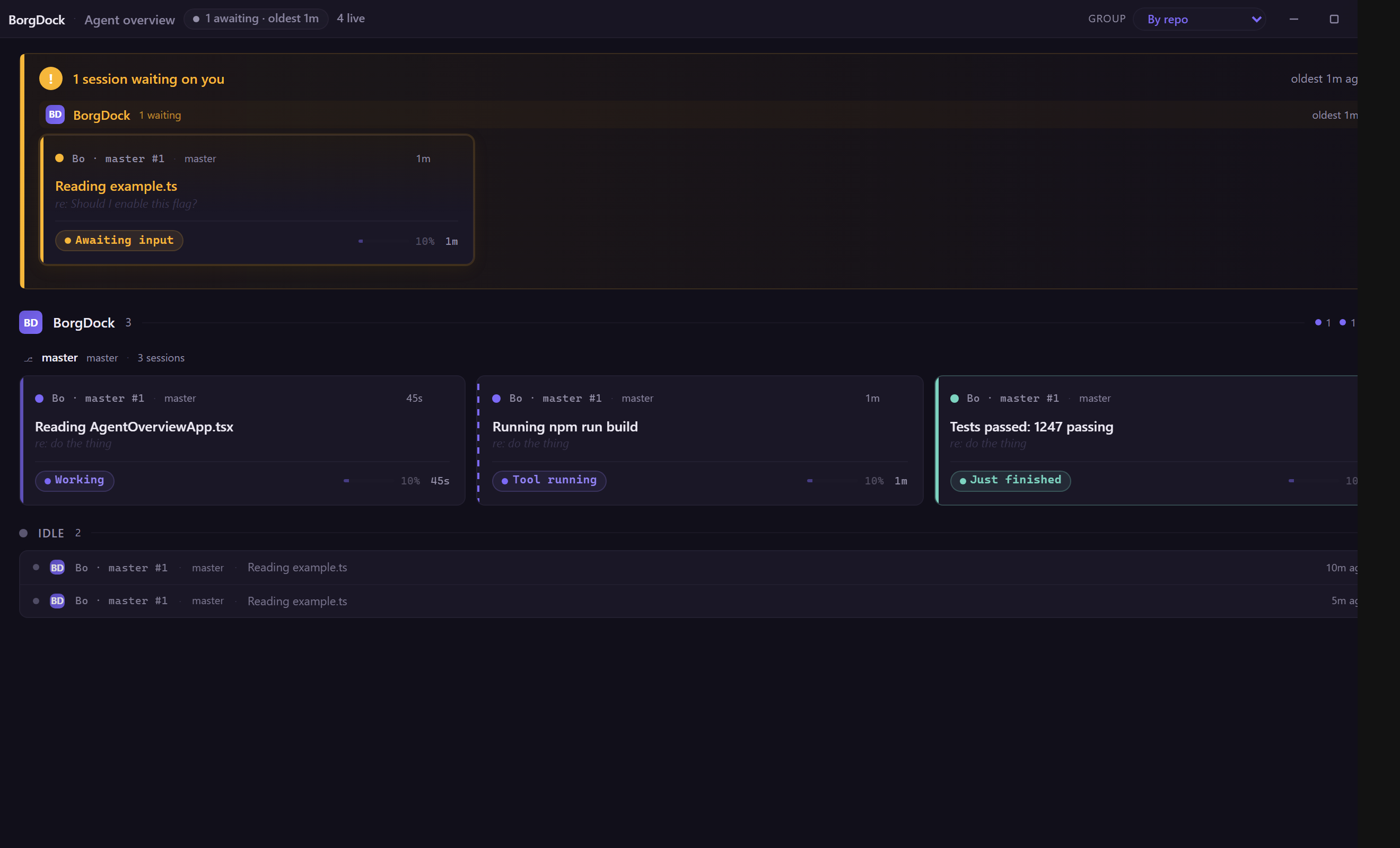
The part we use most: sessions that are waiting on you float to the top in a yellow alert rail, and the title bar shows an age that turns amber after three minutes and red after ten. Step away and BorgDock sends a desktop notification — "Claude needs your input" — with a button that raises the actual terminal running that session. No more hunting.
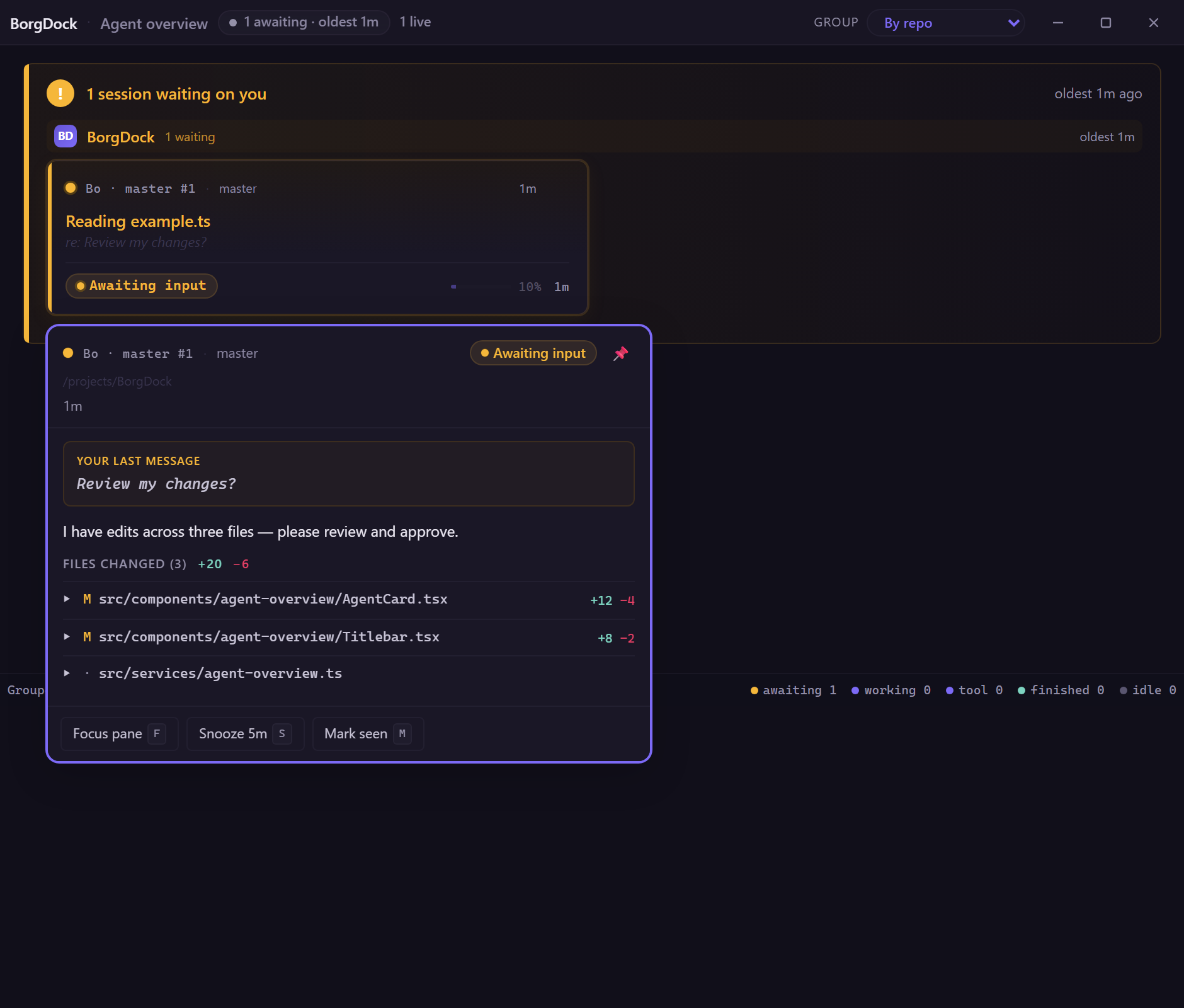
Click any session and the Inspector opens, showing exactly what that agent touched this turn: the files it edited, wrote, or read, each with a diffstat and an expandable inline diff, plus its last question and your last reply. From there it's one click to focus the terminal, snooze the card for five minutes, or mark it seen.
Turning it on takes a single checkbox in Settings → Agent Overview. BorgDock wires a small
OpenTelemetry block into your ~/.claude/settings.json (backing up the original
first) so Claude Code streams events over loopback — nothing ever leaves your
machine — and removes only what it added when you switch it off.
From sidebar to a real window
BorgDock no longer clamps itself to the edge of your screen and slides away the moment you click
elsewhere. It's a normal window now — drag it anywhere, resize it, minimize and maximize it, drop
it on a second monitor — and it remembers exactly where and how you left it. Summon it from
anywhere with Ctrl+Win+Shift+G (one key shows, focuses, or hides it), and closing the
window tucks it to the tray so polling keeps running in the background.
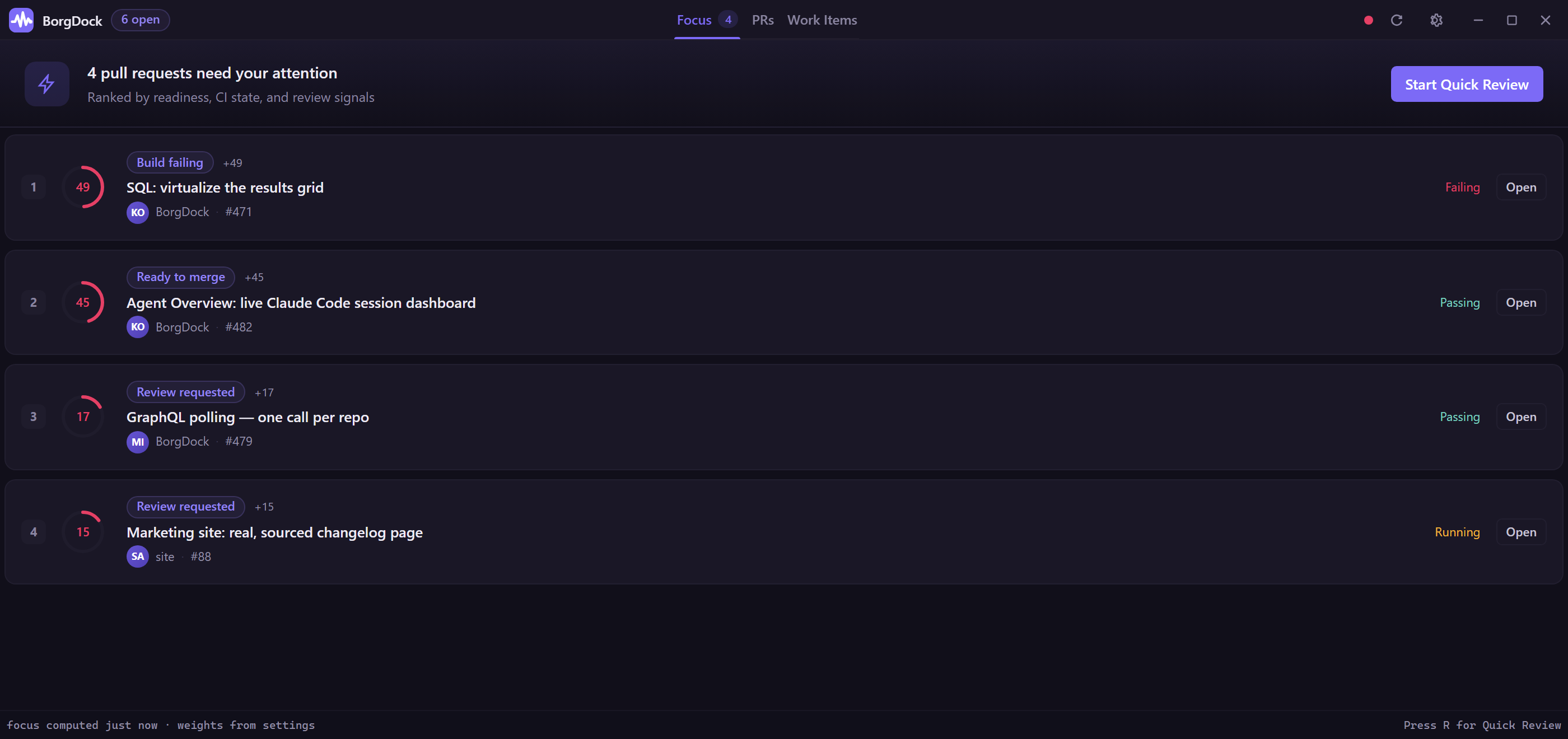
Inside, the single scrolling list became three tabs right in the title bar: Focus, PRs, and Work Items.
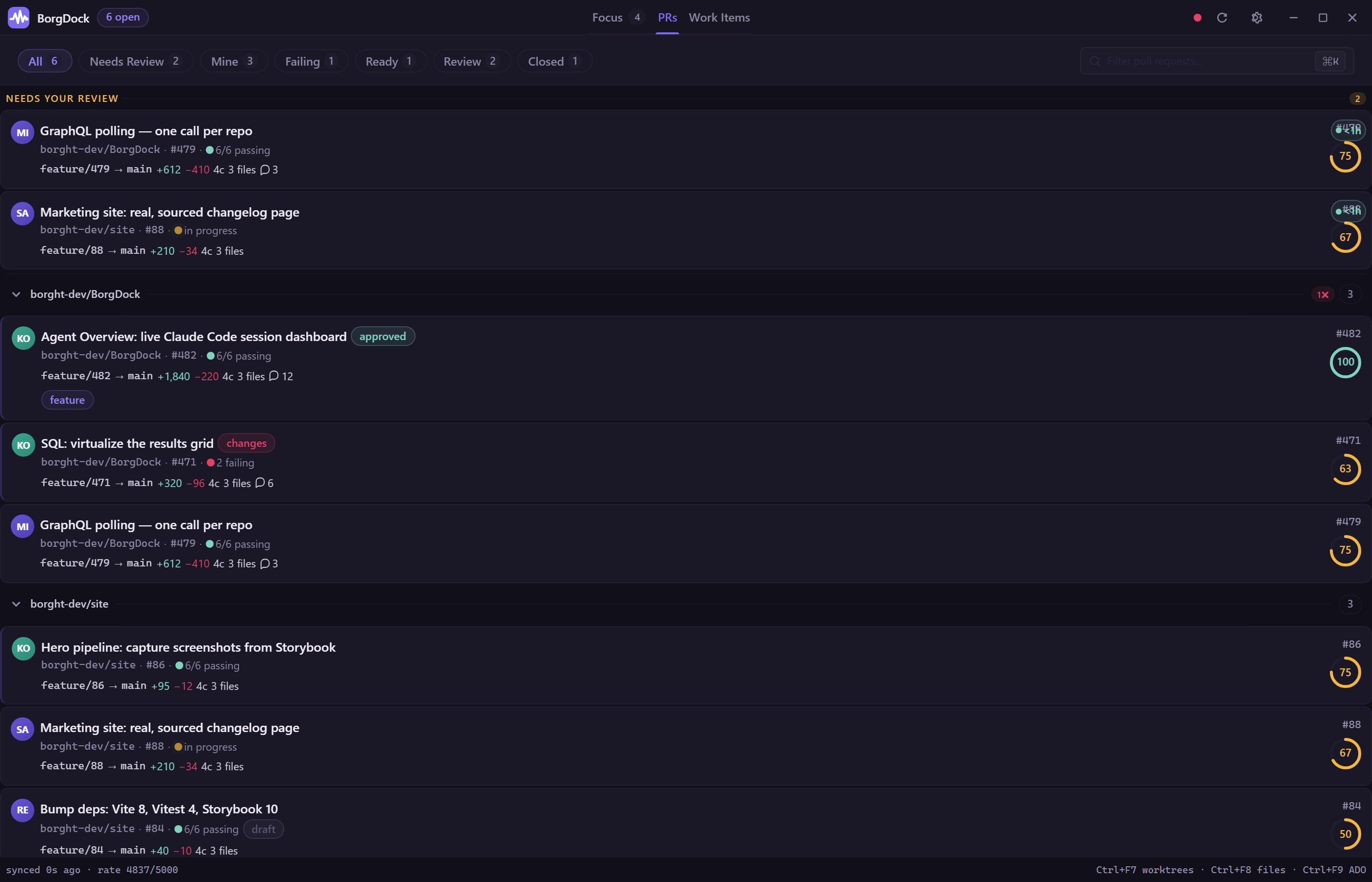
The new Focus tab is the one that earns its keep. It opens with "N pull requests need your attention," ranked by readiness, CI state, and review signals, with a one-click Start Quick Review to blast through your queue. Each PR is a clean ranked row — its position, a score ring, why it surfaced, and a live status — and when nothing needs you, you get calm instead of noise.
Settings, reimagined
Settings moved out of the cramped flyout into a roomy, resizable window with a navigation rail grouped into Data sources, Application, AI, and System — and a breadcrumb that always tells you where you are. Every section was rewritten on a fresh set of controls.
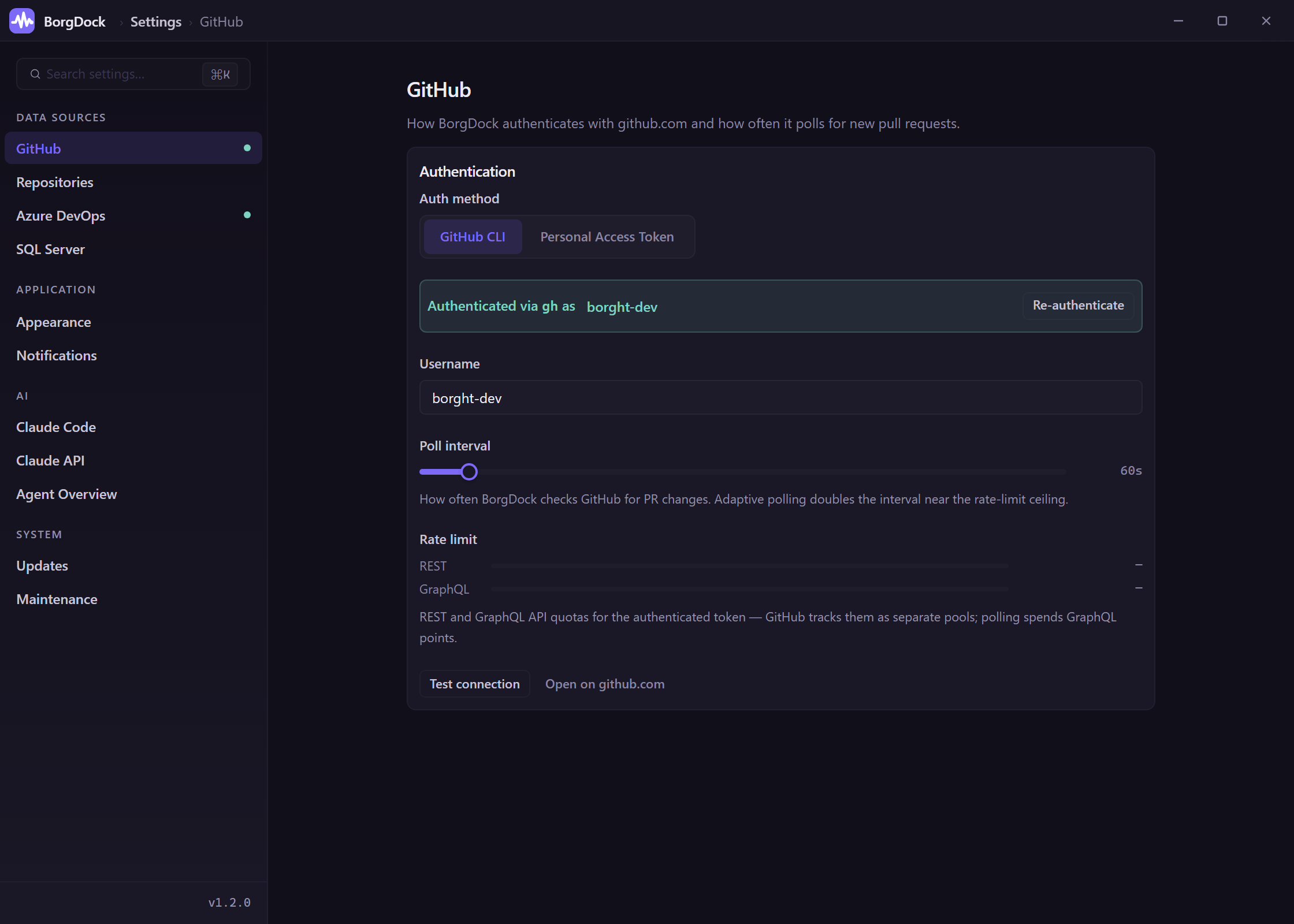
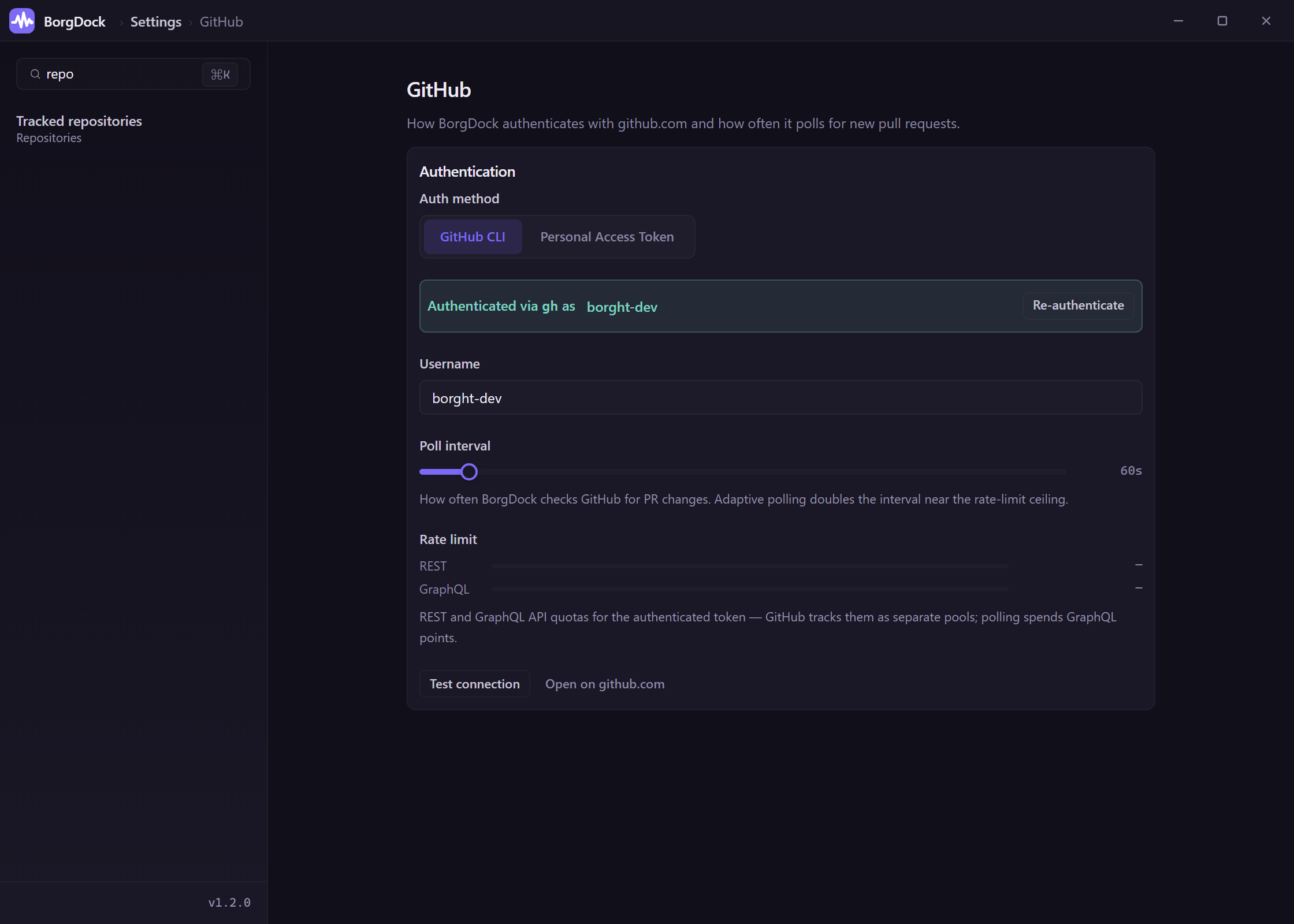
- Search every setting — press
Ctrl+K, type, and jump straight to the field with a highlight pulse. - Maintenance & diagnostics — clear the cache, prune merged worktrees, or run a one-click self-test of your GitHub auth, Azure CLI, and cache.
- Scan a folder for repos — point BorgDock at a parent folder and it discovers every git repo and reads its remote automatically.
- See your GitHub API budget — separate live gauges for the REST and GraphQL pools, so you know your poll interval is sustainable.
A better PR detail
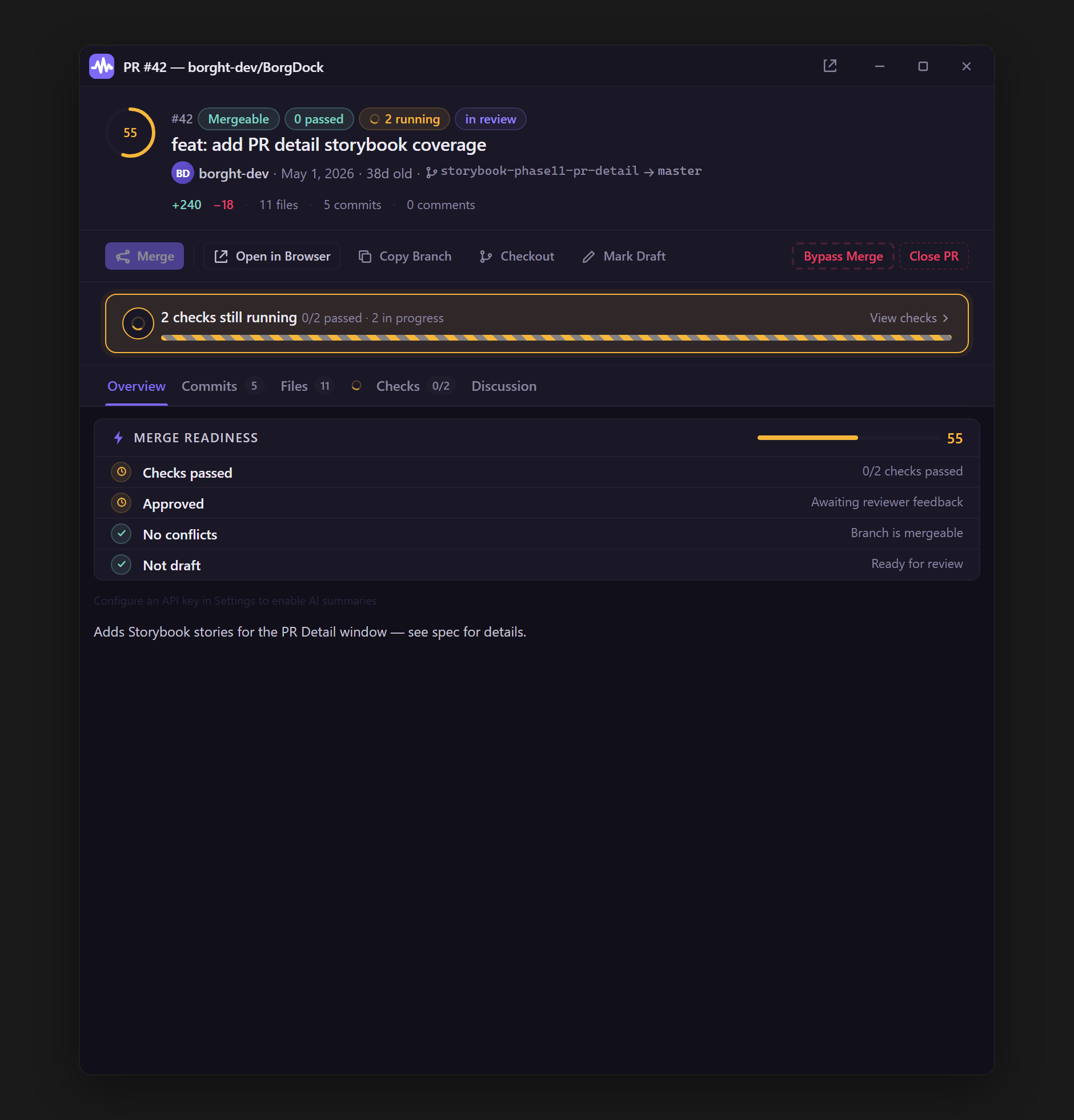
The PR detail window got a top-to-bottom redesign. A sticky action bar keeps Merge, Open in Browser, Copy Branch, Checkout, Mark Draft, Bypass, and Close PR available from any tab, and a persistent checks strip shows whether your builds are running, failing, or green — with a tap to jump to the Checks tab.
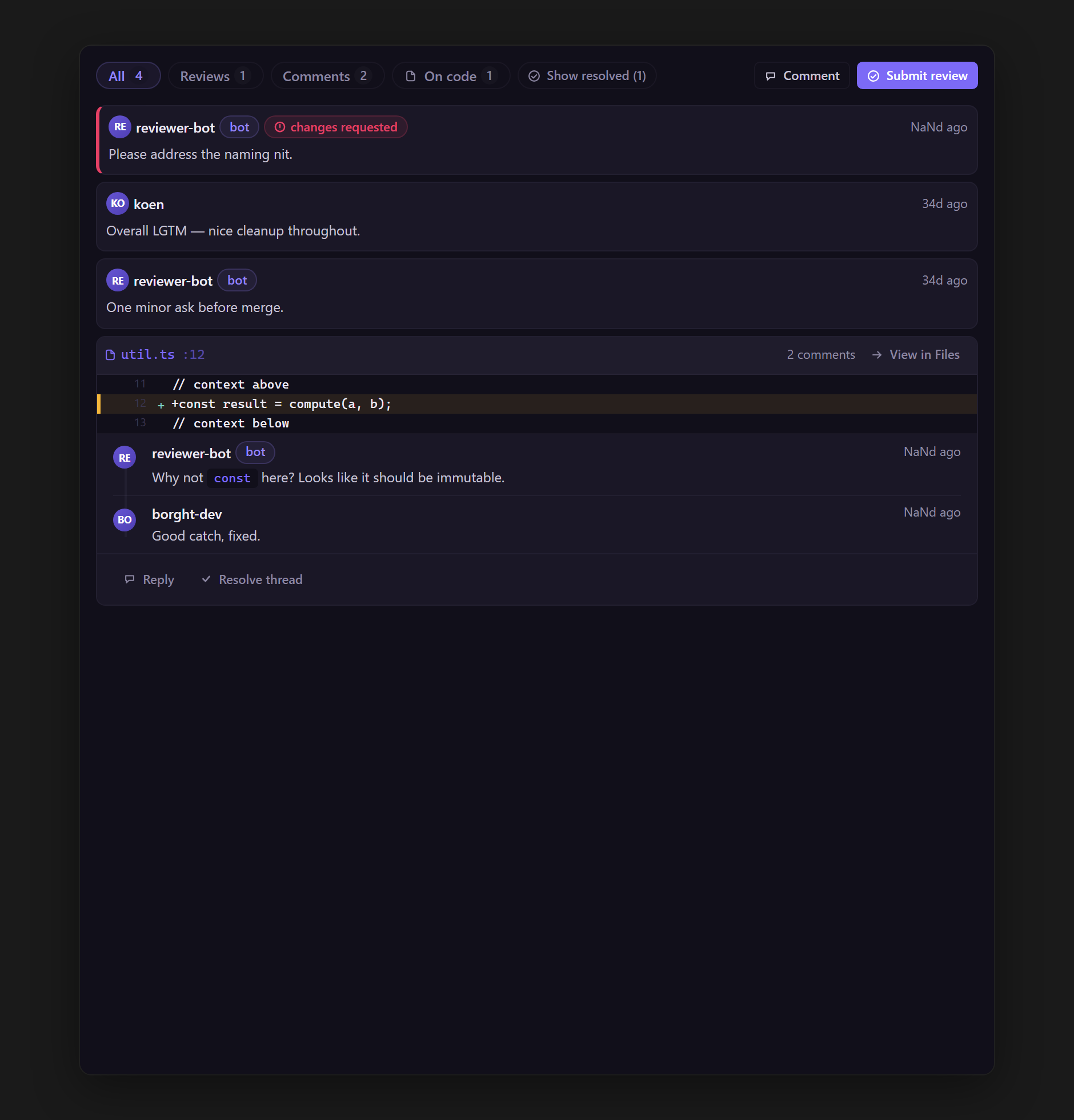
Reviews, comments, and code-anchored threads now live together in one chronological Discussion timeline, with filter chips to narrow to just reviews, comments, or on-code threads — and one-click resolve. You can write and submit a review (Approve, Comment, or Request changes) without leaving the window, right next to the diff, and code threads appear inline beneath the exact line they're about.
Work Items, a real workspace
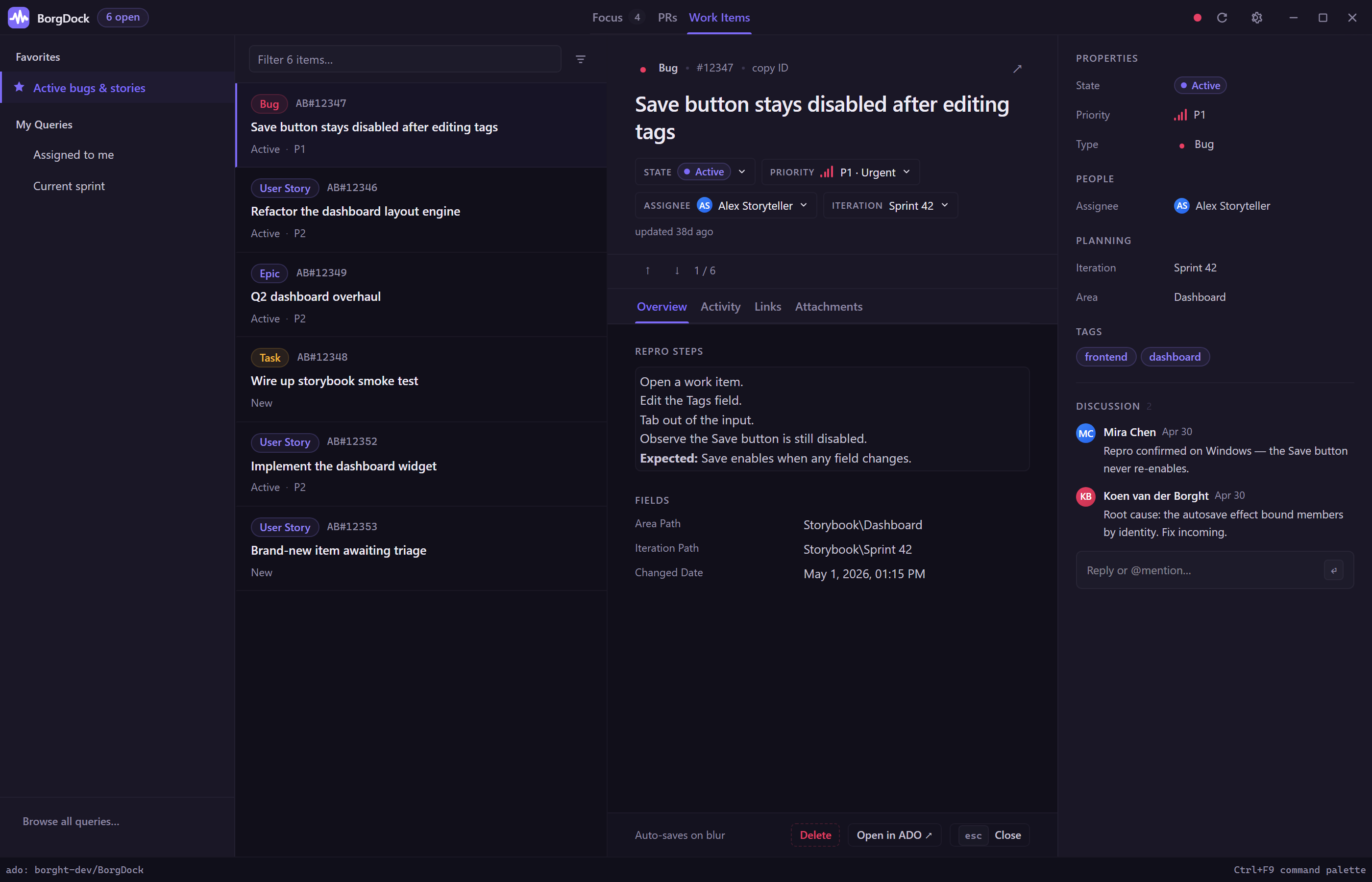
The Work Items tab is now a full three-pane workspace: your queries on the left, matching items in the middle, and the full work item on the right. Click the title to rename it, click any chip to change state, priority, assignee, or iteration — and your edits save themselves a moment later with a quiet "Saved." No Save button, no modal.
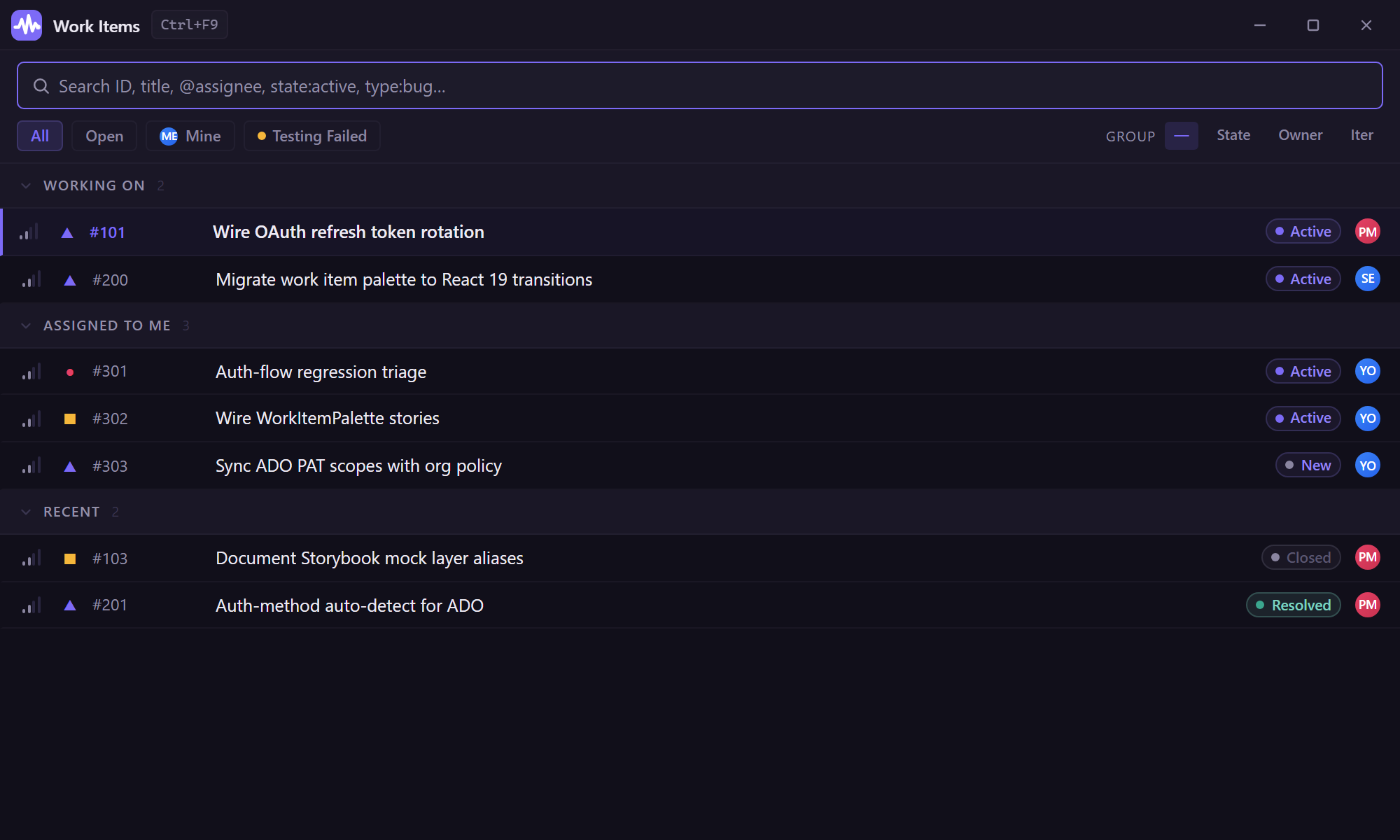
And the Ctrl+F9 palette became a proper power-user surface: type naturally —
@koen, state:active, type:bug — and each operator turns
into a live chip while the list narrows. Filter chips and group-by buttons slice a long query in
a second, and every row is packed with signal.
Faster, honest SQL
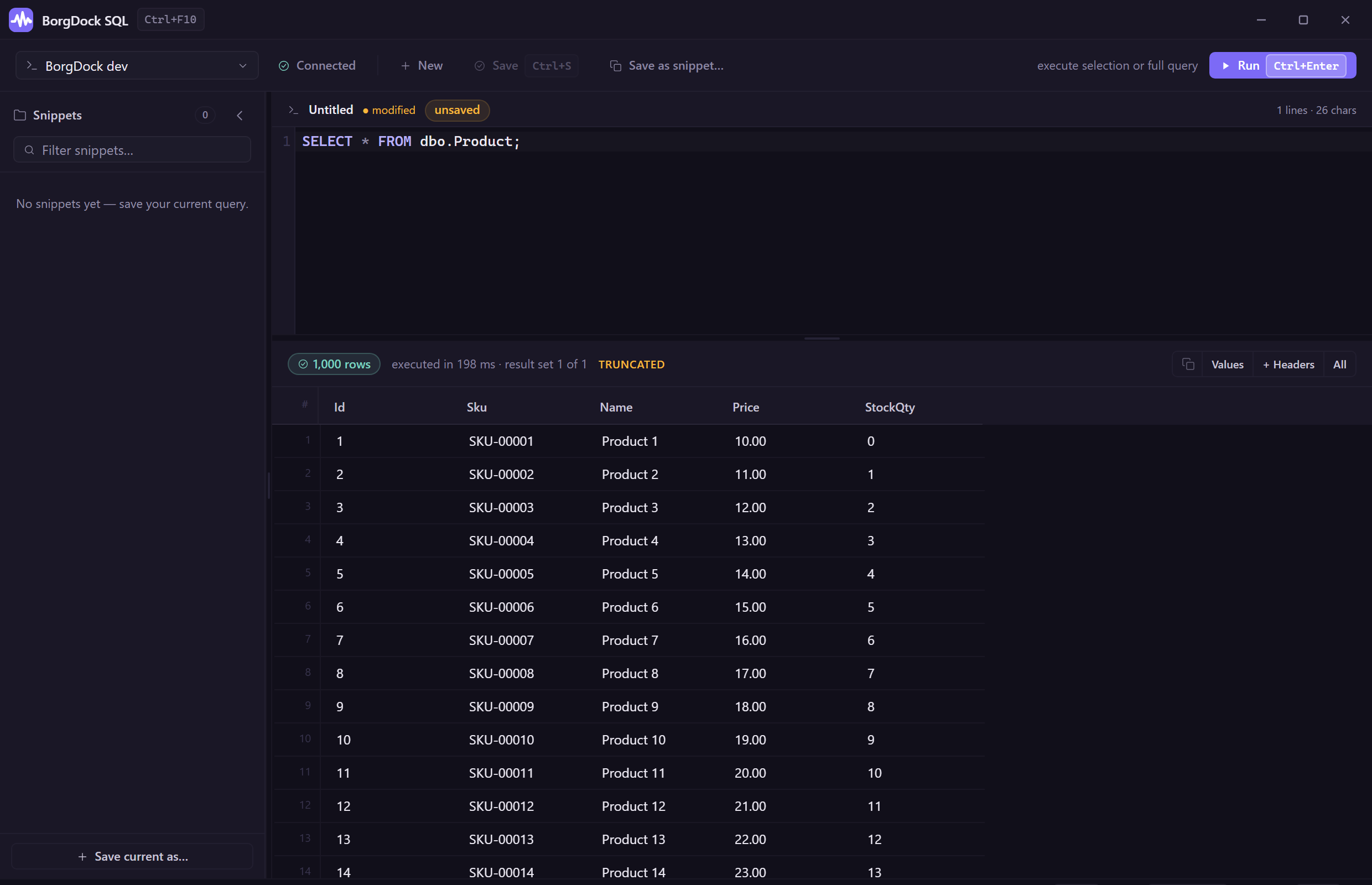
The results grid is now virtualized, so a query that returns ten thousand rows opens, scrolls, and clicks as snappily as one that returns ten — and the old 30-second query cap is gone, so slow reports finally get the time they need.
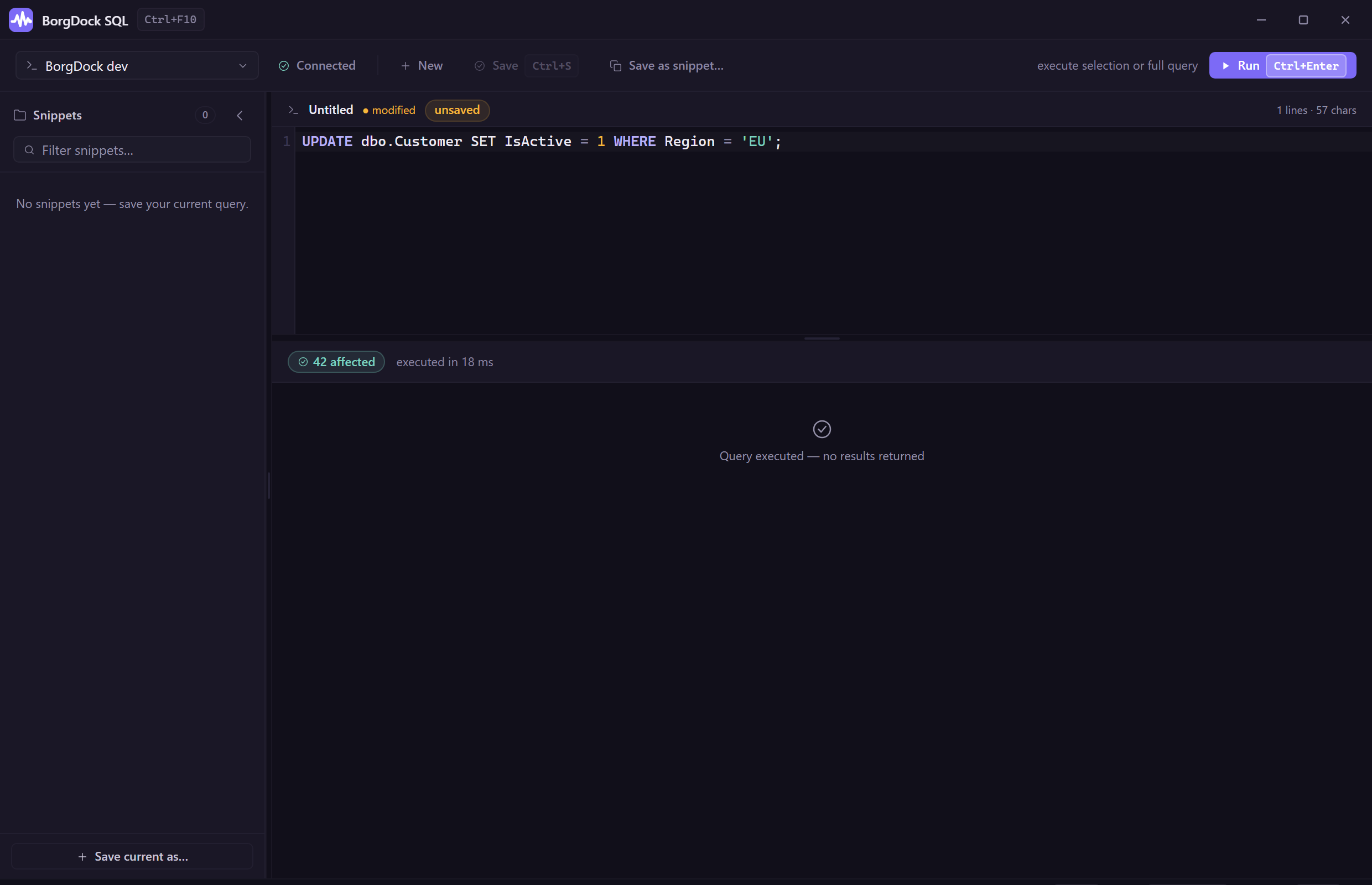
Run a write — an UPDATE, INSERT, DELETE, MERGE,
or DDL — and BorgDock now tells you plainly how many rows it changed instead of showing an empty
grid: a green "42 affected" pill and "42 rows affected · 18 ms."
Notifications you can act on
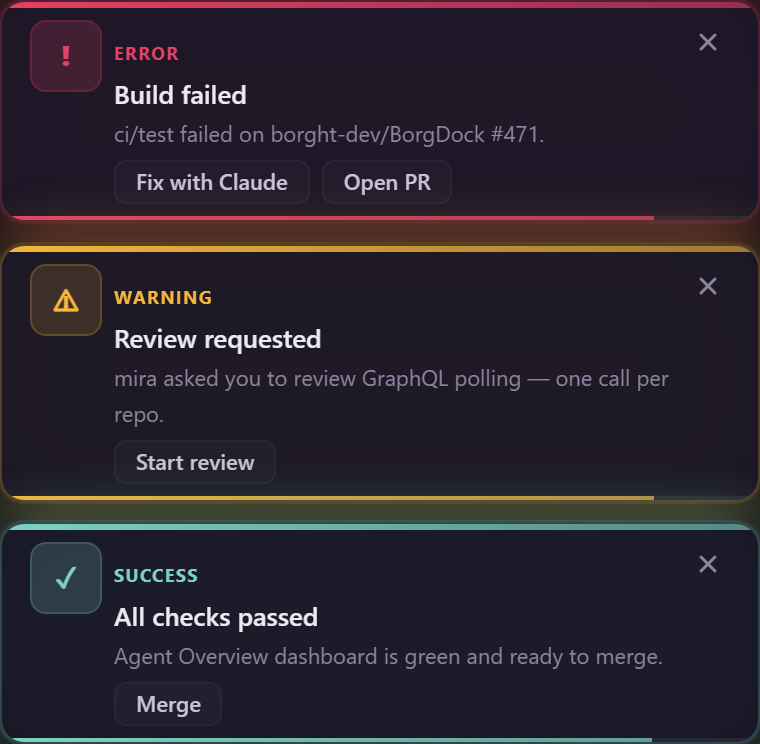
Every alert now arrives as one polished toast near the tray, with a severity stripe, a clear title and body, and one-tap actions — Open PR, Fix with Claude, Merge, Start review. Click the card to jump to the PR, hover to pause the auto-hide, dismiss with the X. Up to three stack at once.
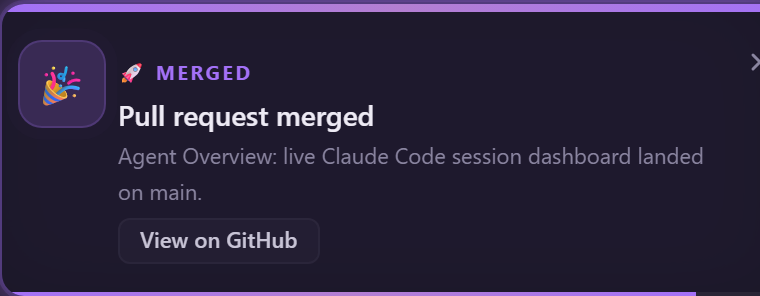
And when one of your PRs lands, BorgDock celebrates with you: a gold "Merged" toast with a shimmer, a glow, and a little rocket — plus an optional tada sound you can toggle in Settings.
Other noteworthy changes
- Pop-out windows open clean (no flash of a blank window) and reopen at the size and position you left them.
- A refreshed BorgDock app icon — a sharper purple-gradient pulse-waveform mark.
- The tray opens the main window on left-click and gained a direct Agent Overview entry.
- Smarter palette and SQL hotkeys (
Ctrl+F7/F8/F9/F10) that hide, raise, or open without wiping your input — and open faster. - Markdown links in a PR open in your OS browser, not the in-app webview.
- Cancelled CI checks no longer drag a PR red, and an "In progress" group is pinned to the top of the Checks tab.
- Run-at-startup actually registers with the OS now, and a Test notification button confirms toasts work.
Under the hood, the whole frontend moved to a single bun workspace, picked up the React Compiler, and updated to Vite 8, Vitest 4, Storybook 10, and TypeScript 6 — and every window now has a full Storybook catalog, which is exactly how the screenshots on this page were captured.
Breaking changes
BorgDock 2.0 replaces the docked, auto-hiding sidebar with a regular window you summon with a
hotkey (Ctrl+Win+Shift+G by default). The old sidebar edge / mode / width
settings are gone — everything they did is now handled by normal window management. There's
nothing to migrate; just press the hotkey and BorgDock appears.