Features
Six jobs, one window.
BorgDock sits beside your editor and does the parts of pull request and agent work that usually cost you a browser tab.
Pull requests
Watch every pull request
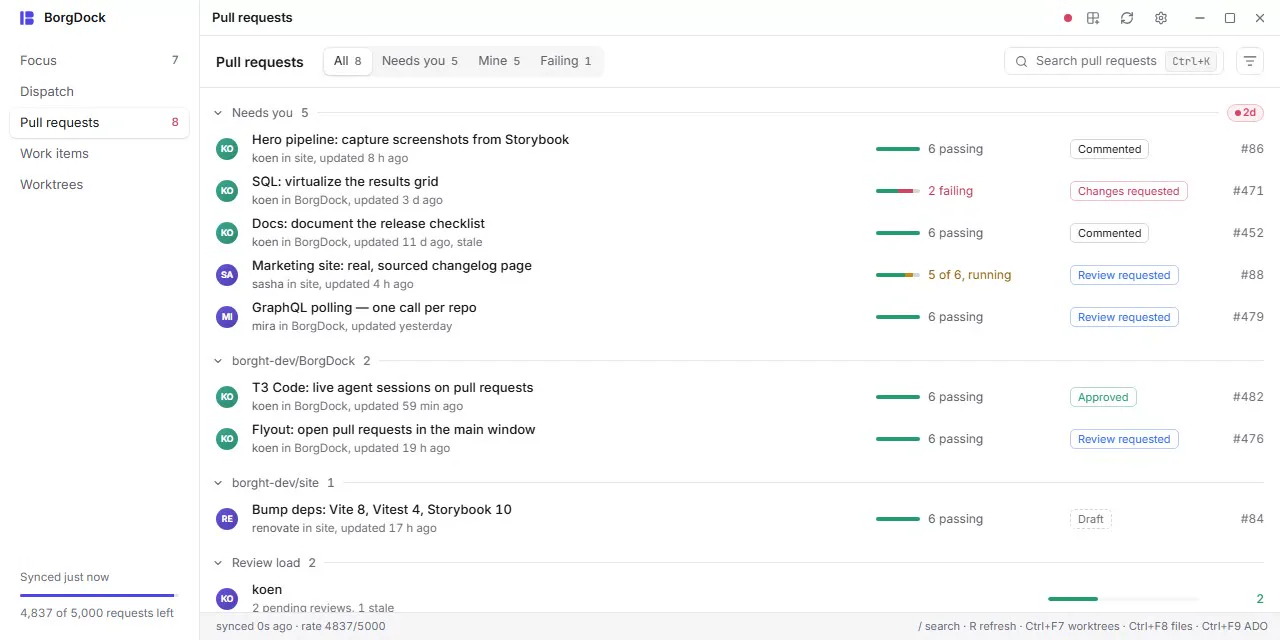
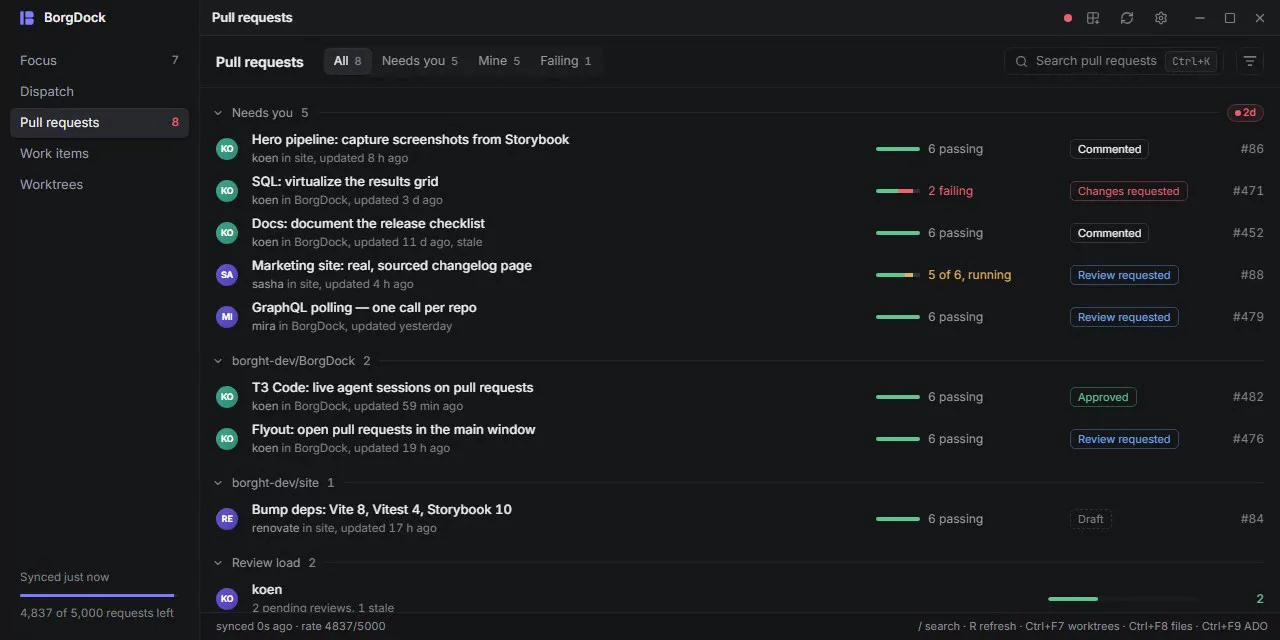
The Pull requests section lists every open pull request across your repositories, with one row each and the checks drawn as a single bar.
Filter to Needs you, Mine or Failing, or group by repository or author, and the rows slide to their new place.
Click a row and the pull request opens full screen in the same window, with its whole description and screenshots. Back or Esc takes you straight back to where you were.
Focus
Decide what needs you
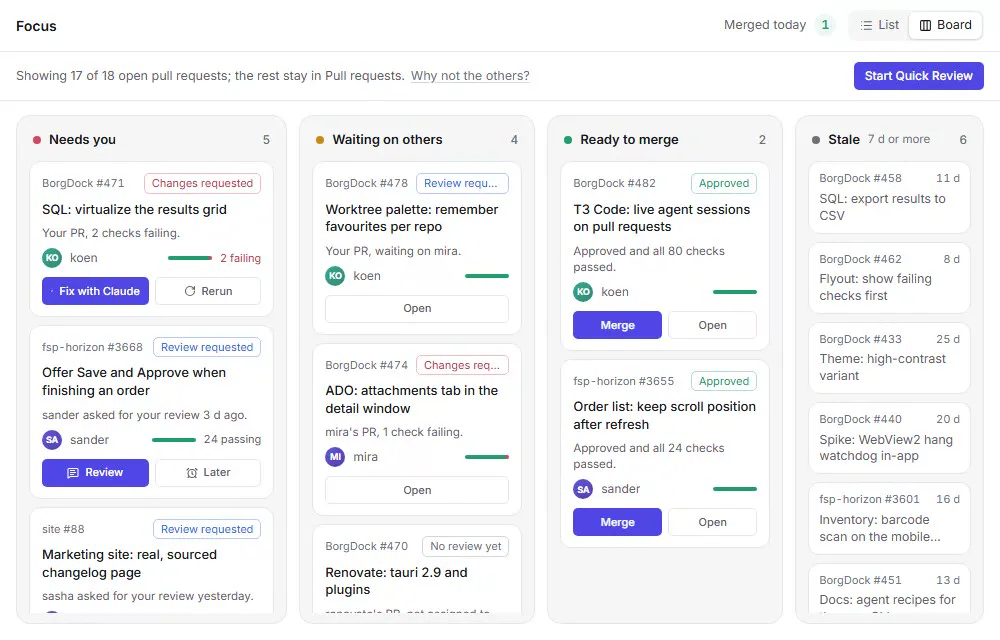
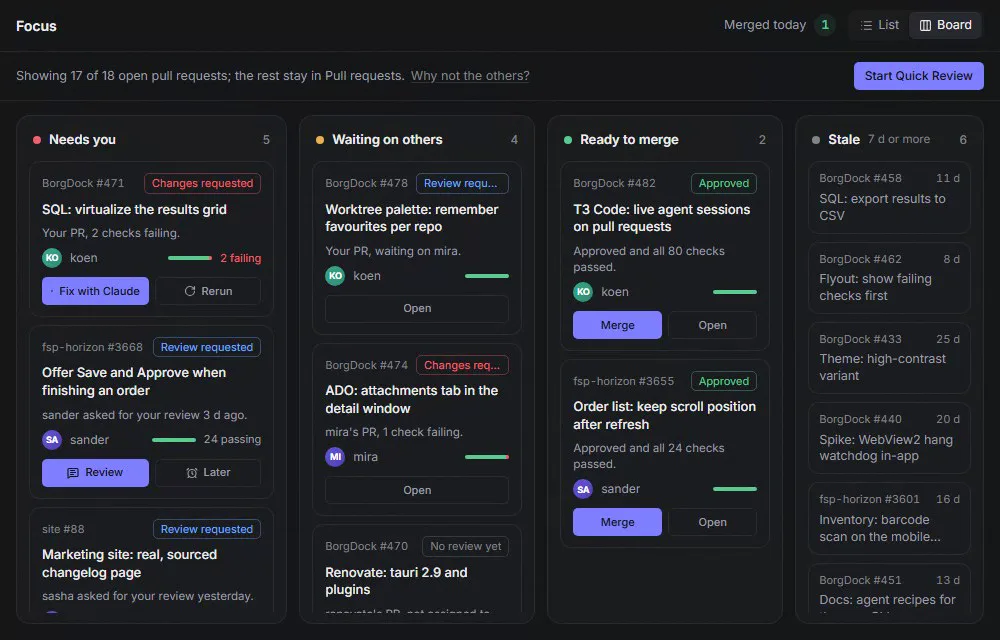
Focus shows only the pull requests that need something from you, and says why: a review request, a failing check, a conflict.
An agent with a question, a plan to approve or a failure sits at the top, with the obvious action on it, so you never leave one waiting.
Switch to the board to see Needs you, Waiting on others, Ready to merge and Stale side by side, and merge a green pull request right from it.
Dispatch
Walk your work every morning
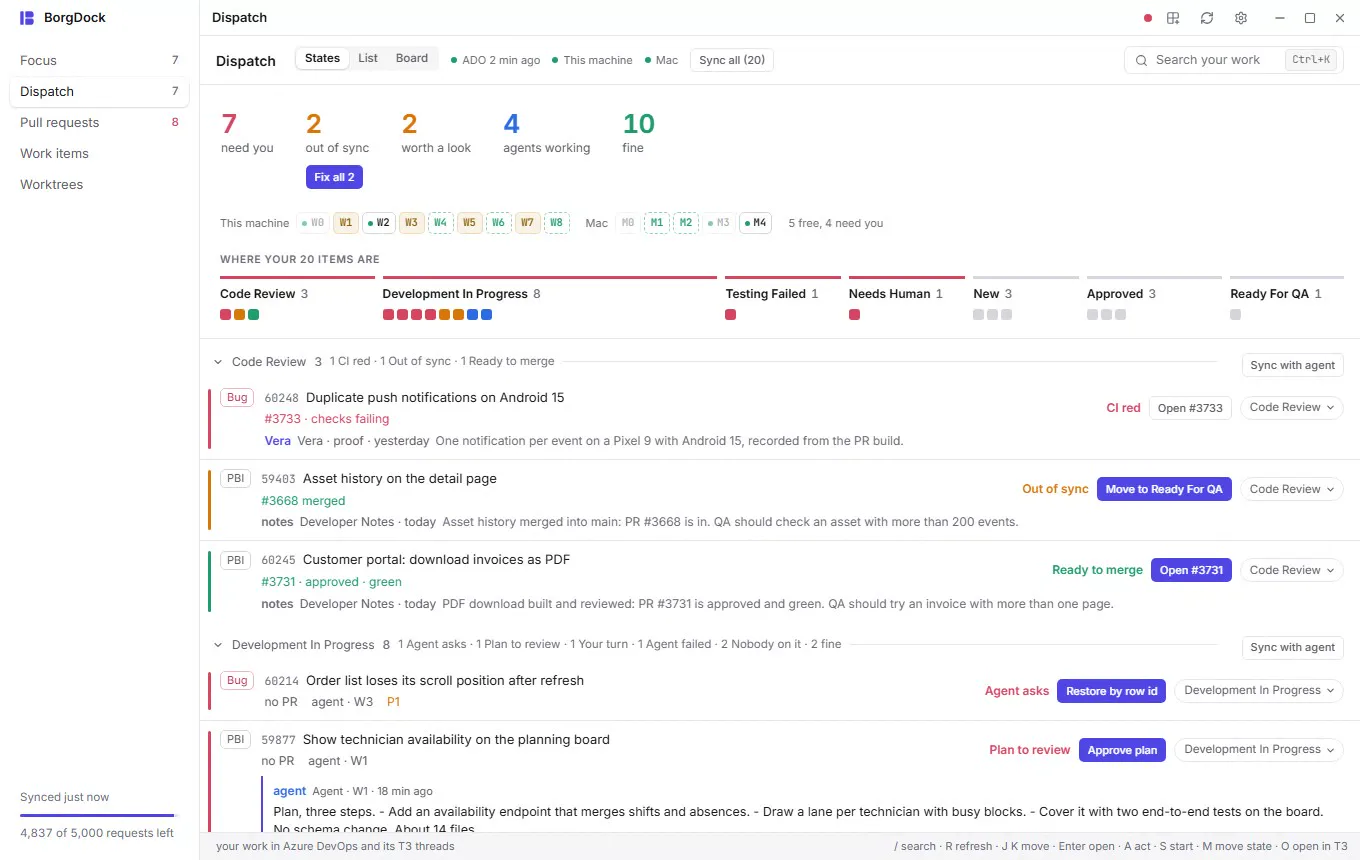
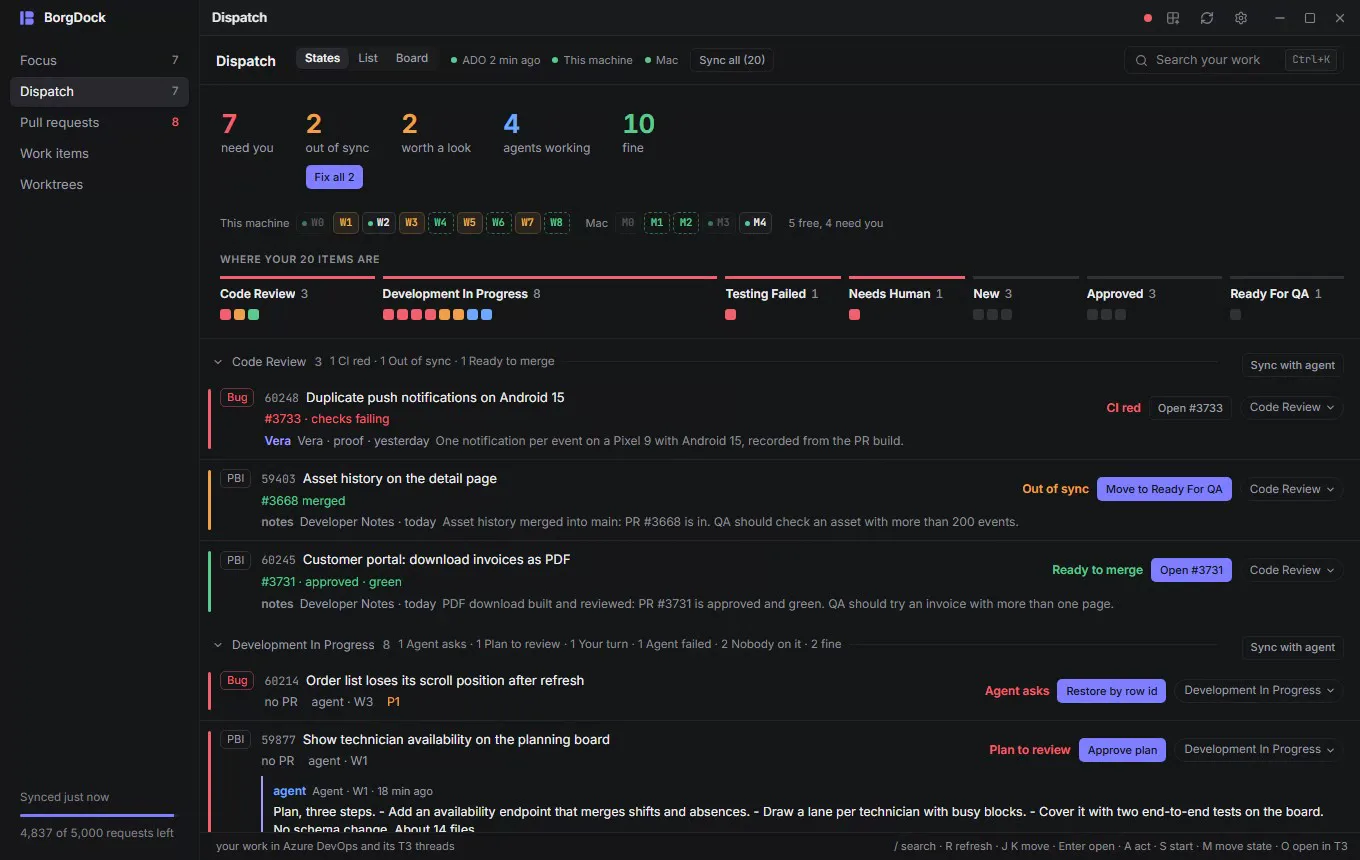
Dispatch puts every Azure DevOps item assigned to you next to the T3 Code threads and the pull request that belong to it. It opens on a briefing: how many items need you, are out of sync, are worth a look, have an agent working or are fine.
Click a number to see only those items. Below it, every state gets a section in the order you check them, and each item says what it needs and why.
A pull request merged while the item still says Code Review? Dispatch marks it Out of sync, and Fix out of sync hands them all to one agent that makes the moves the way your repository's skills ask.
Dispatch
Start and answer your agents
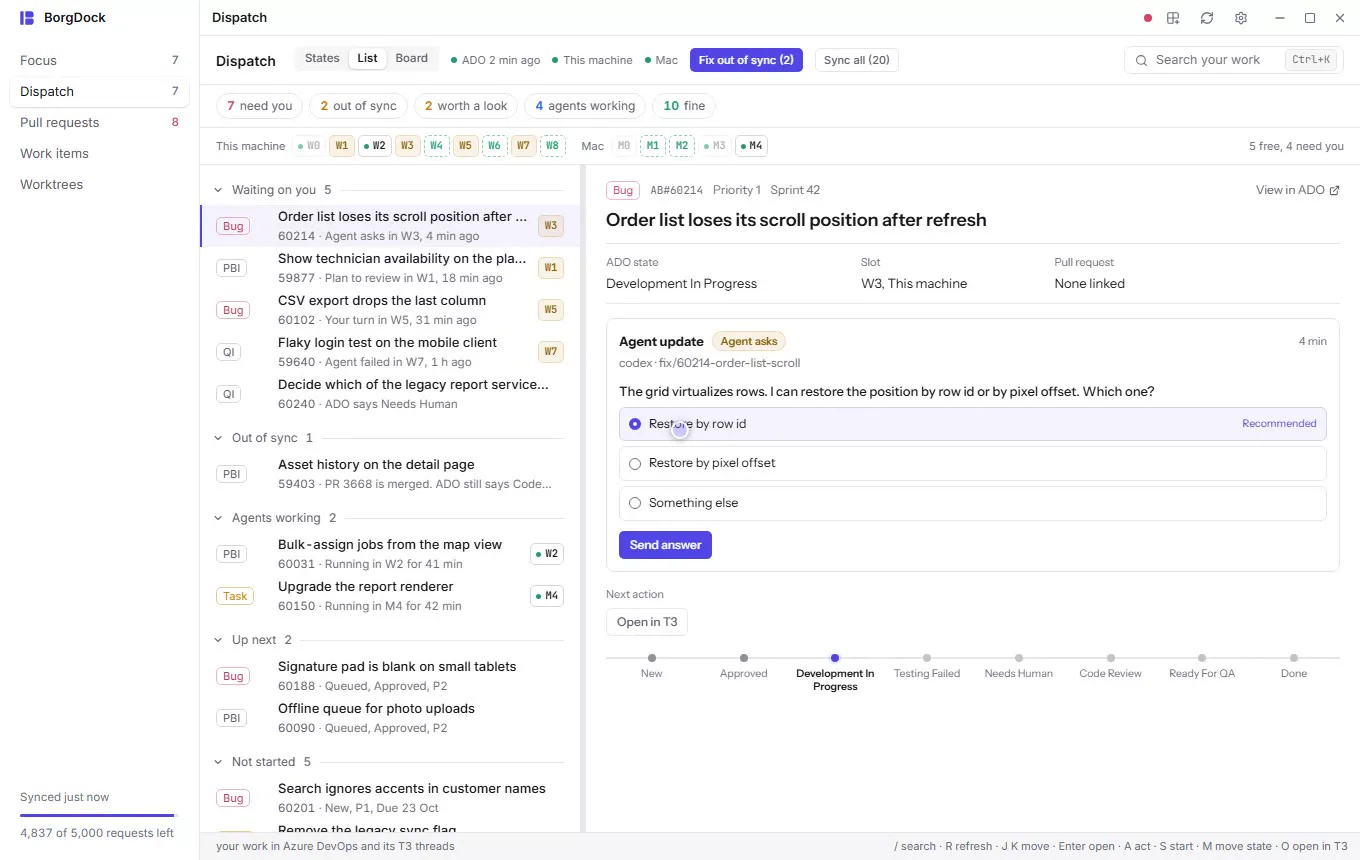
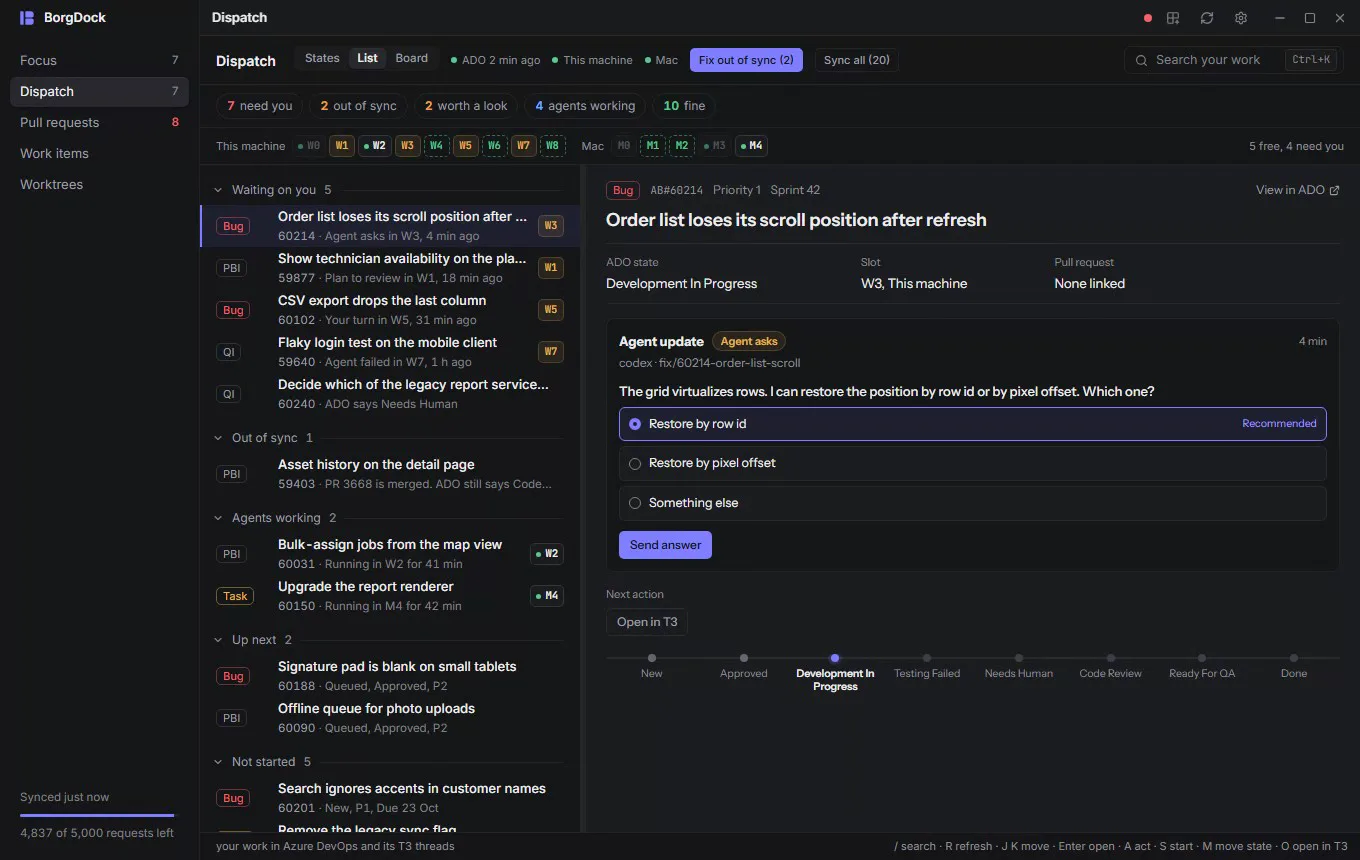
Click a free slot or press S, then pick the model and how the agent begins: a plan for you to approve, straight to work, an update for QA or closing as done.
When an agent asks a question you see its options next to the item. A plan gets Approve plan, and Open in T3 is one key away when you want the whole conversation.
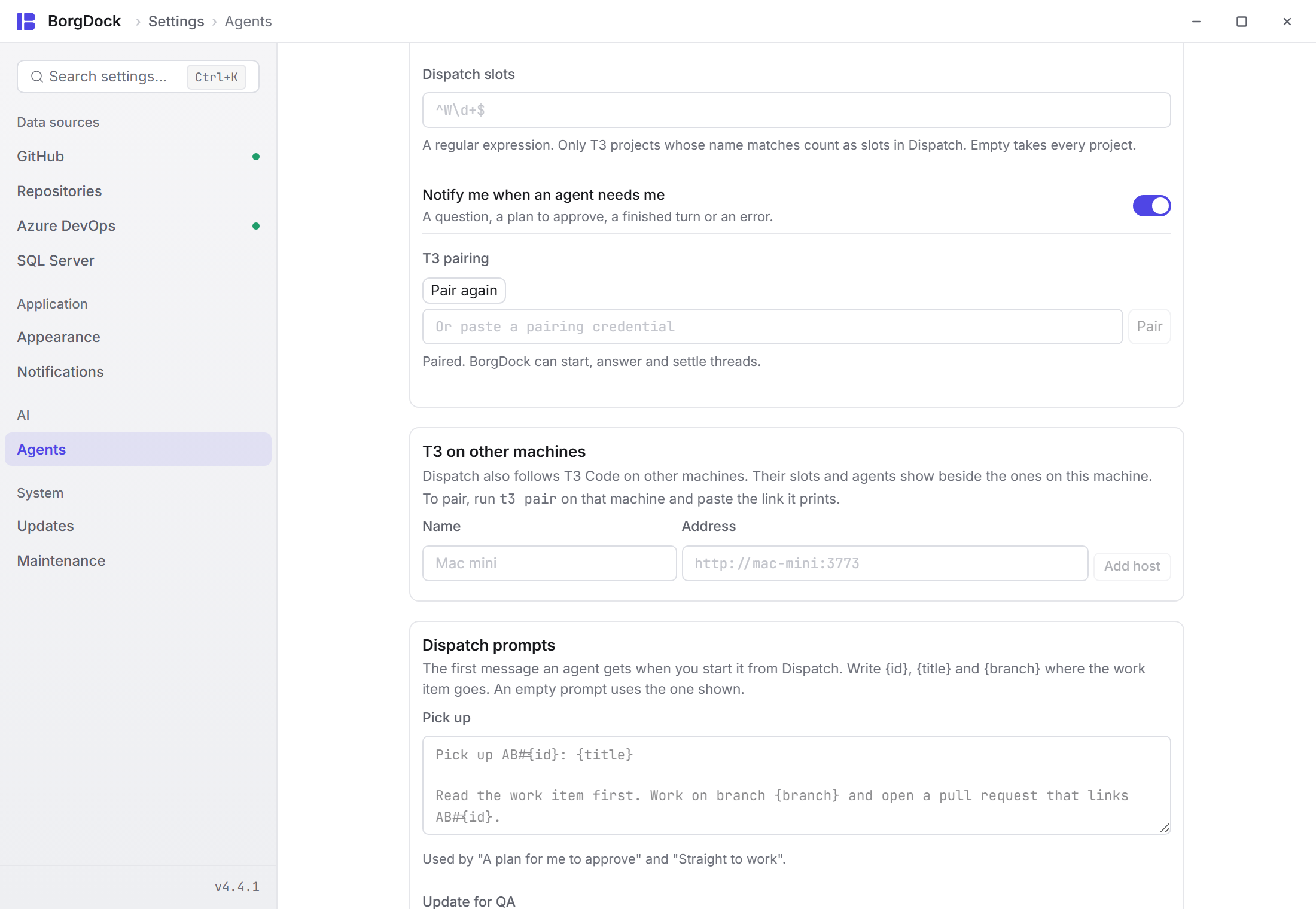
Run T3 Code on a Mac mini or a build machine too? Add it under Settings → Agents and its agents show beside yours.
Fix with Claude
Hand a failure to an agent
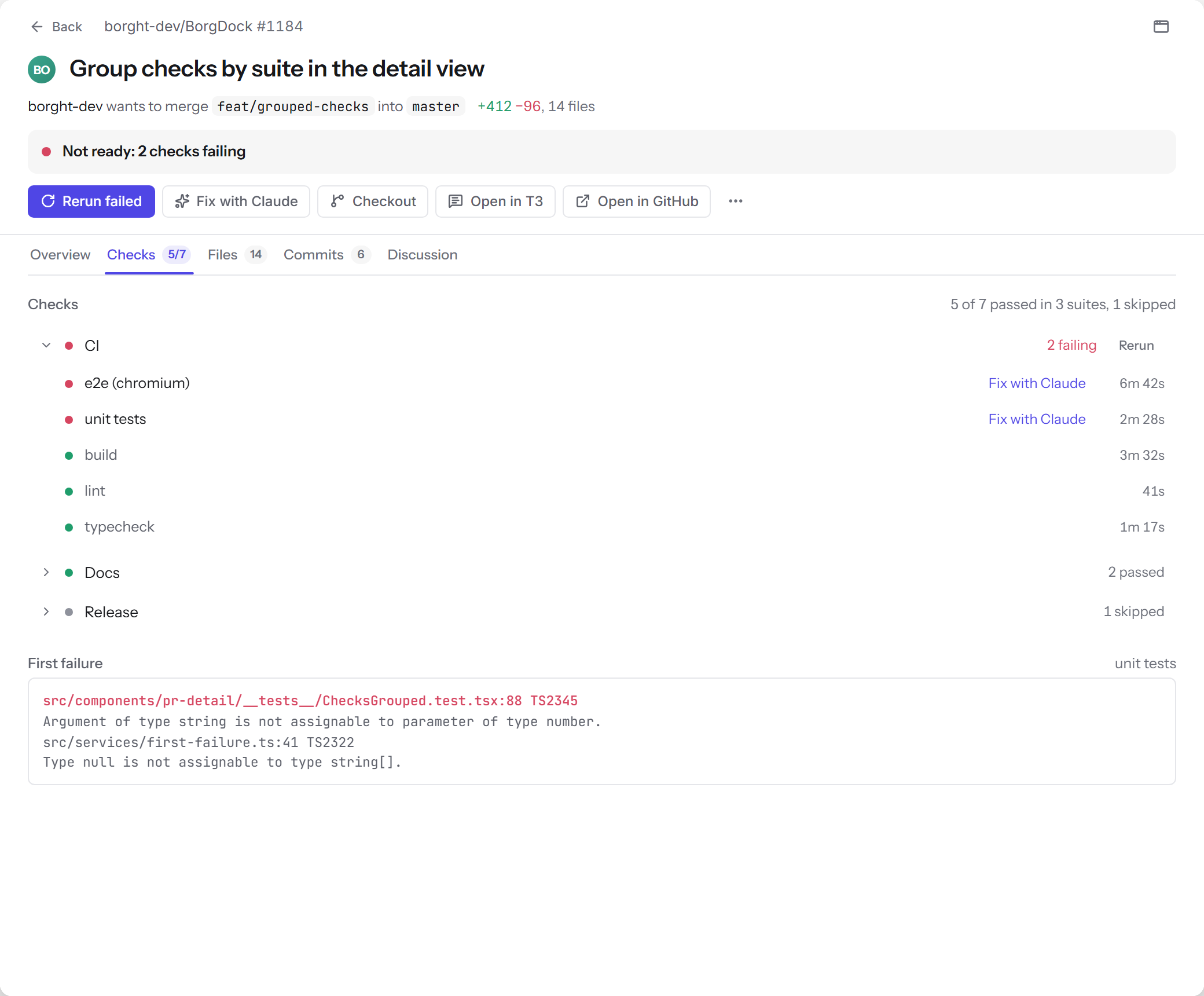
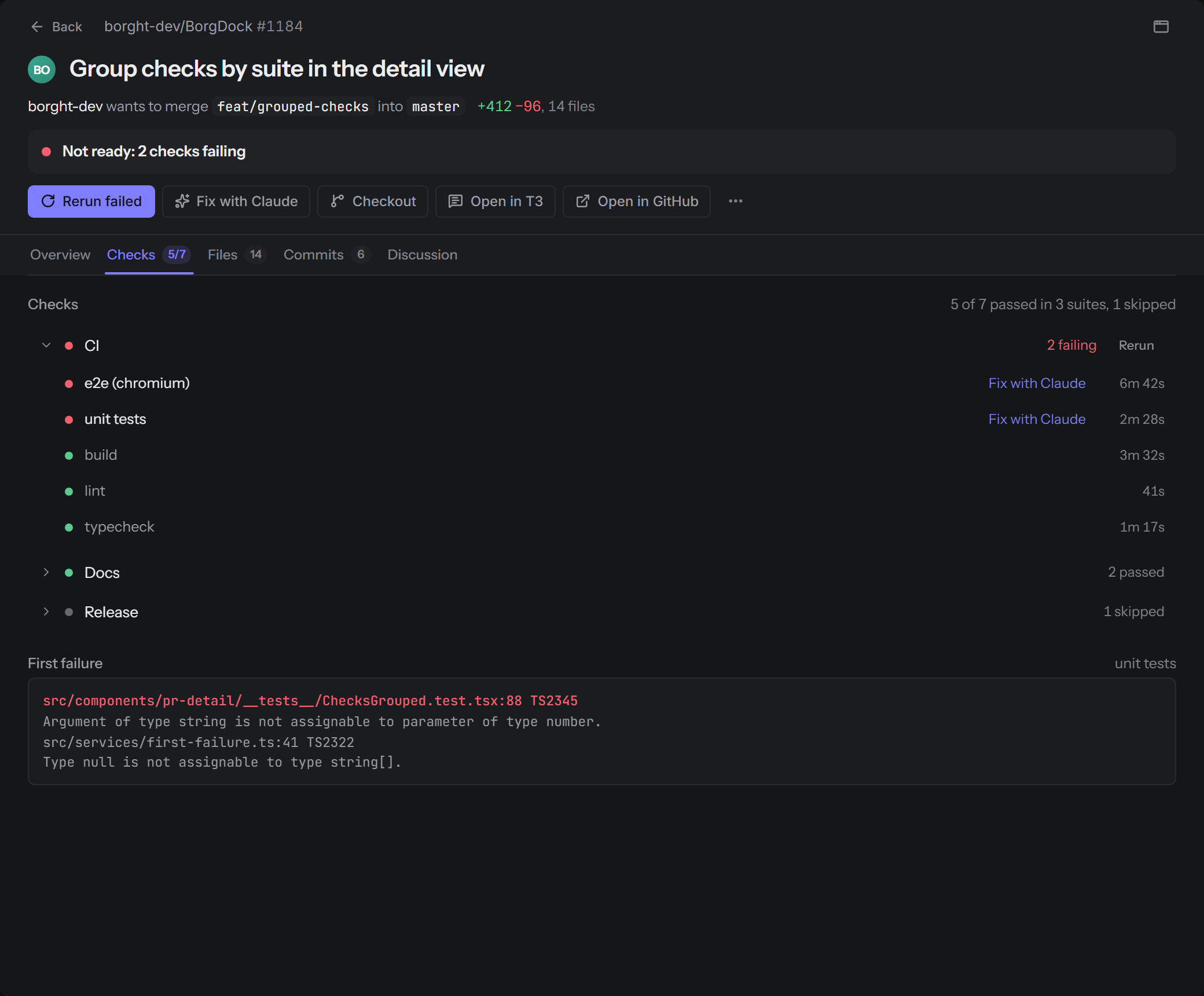
When a check fails, the pull request shows the first error from its log, so you see what broke without scrolling.
Fix with Claude starts Claude Code on that branch with the error as its prompt, in its own worktree, so your checkout stays as it is.
Prefer T3 Code? Open in T3 starts a new thread that is linked to the pull request.
Quick review
Review and merge without a browser
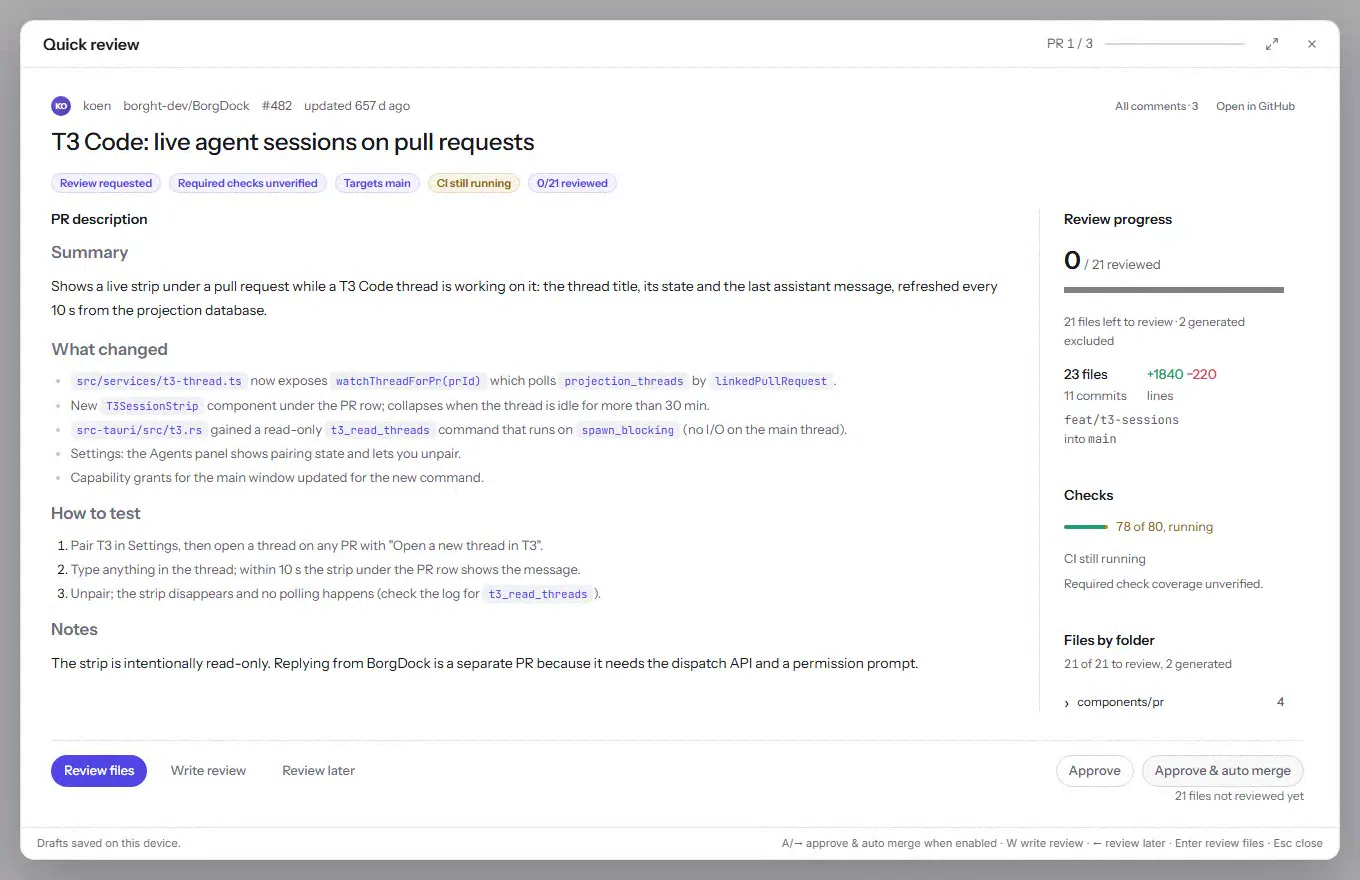
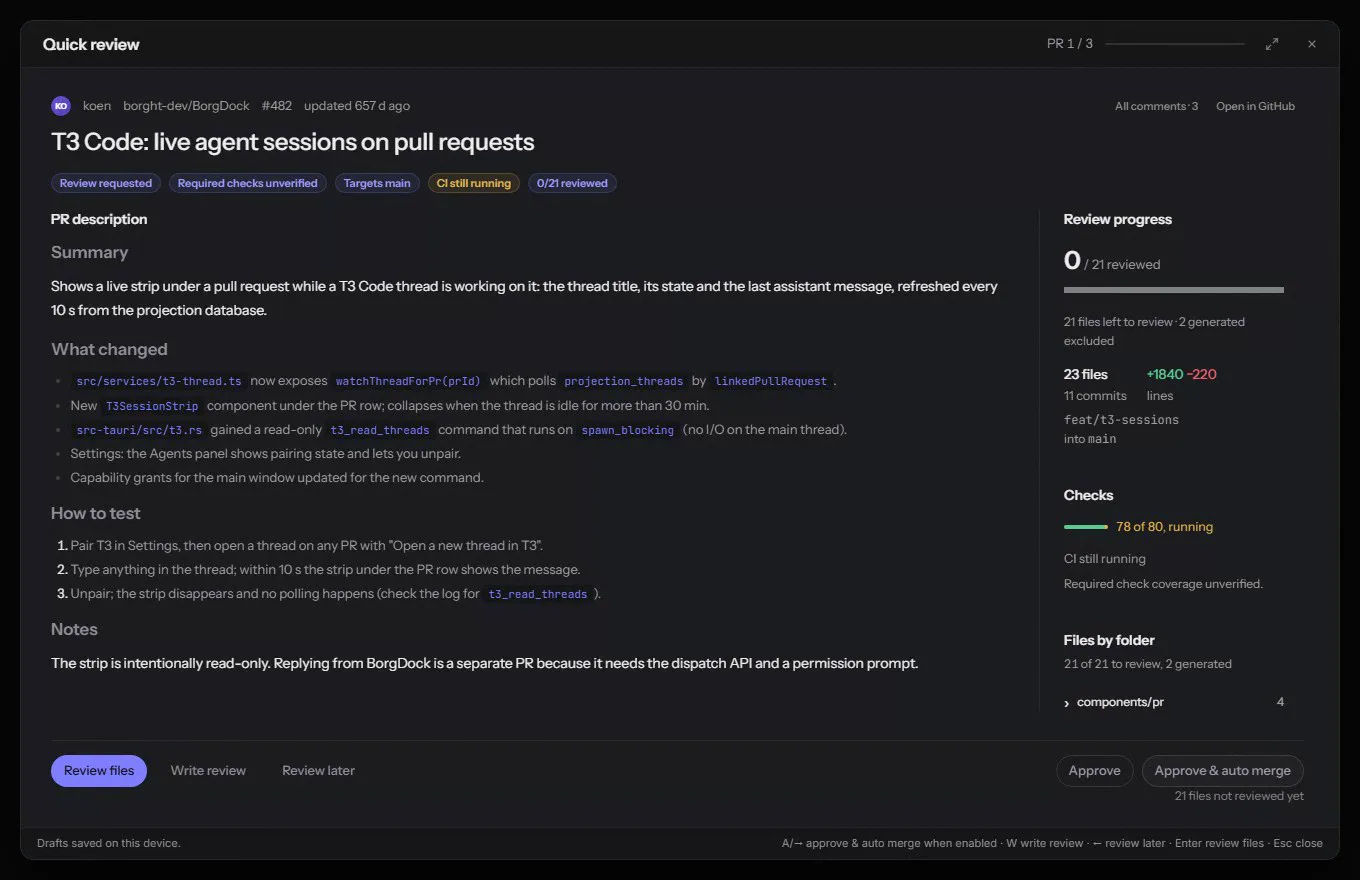
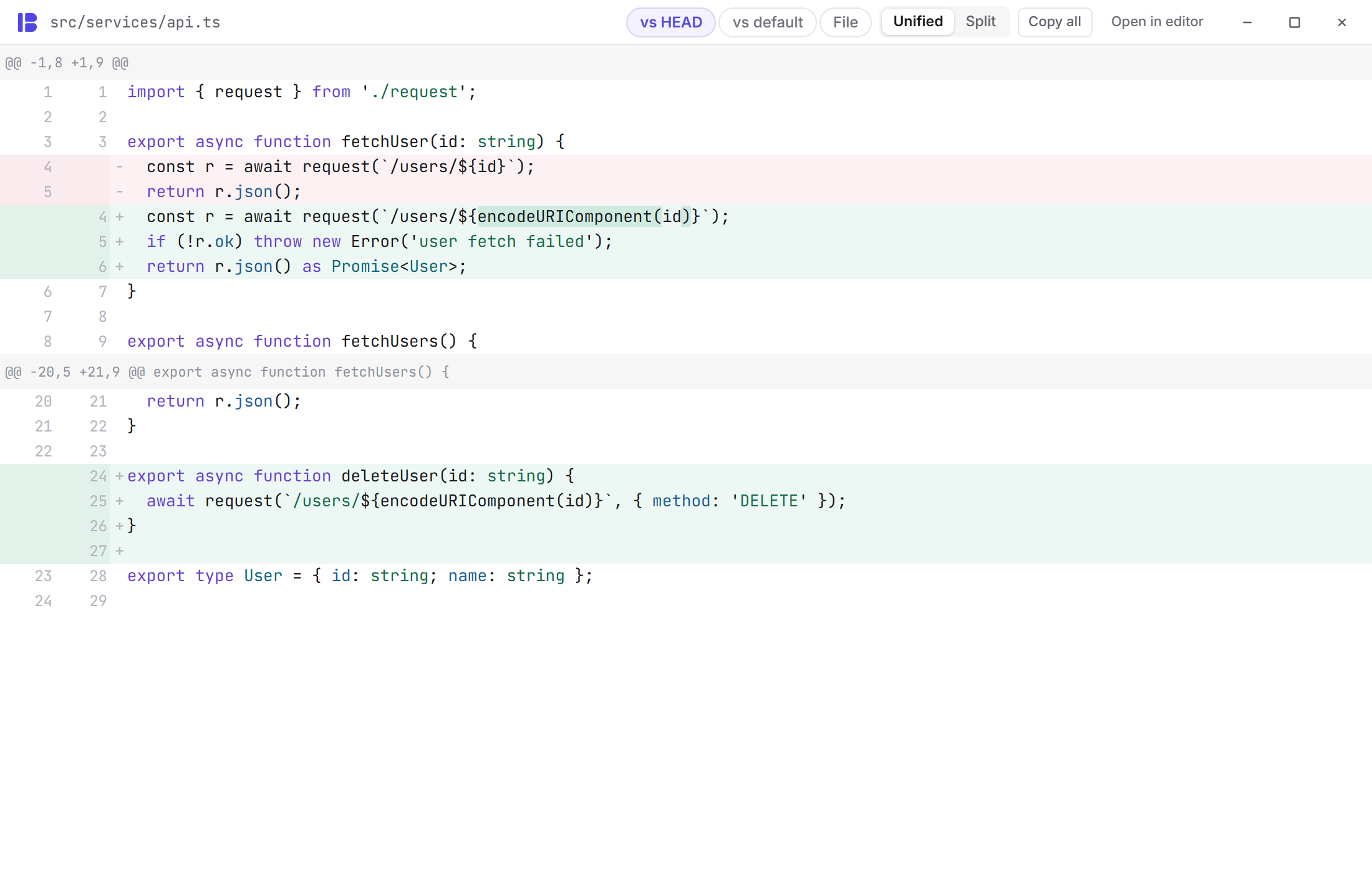
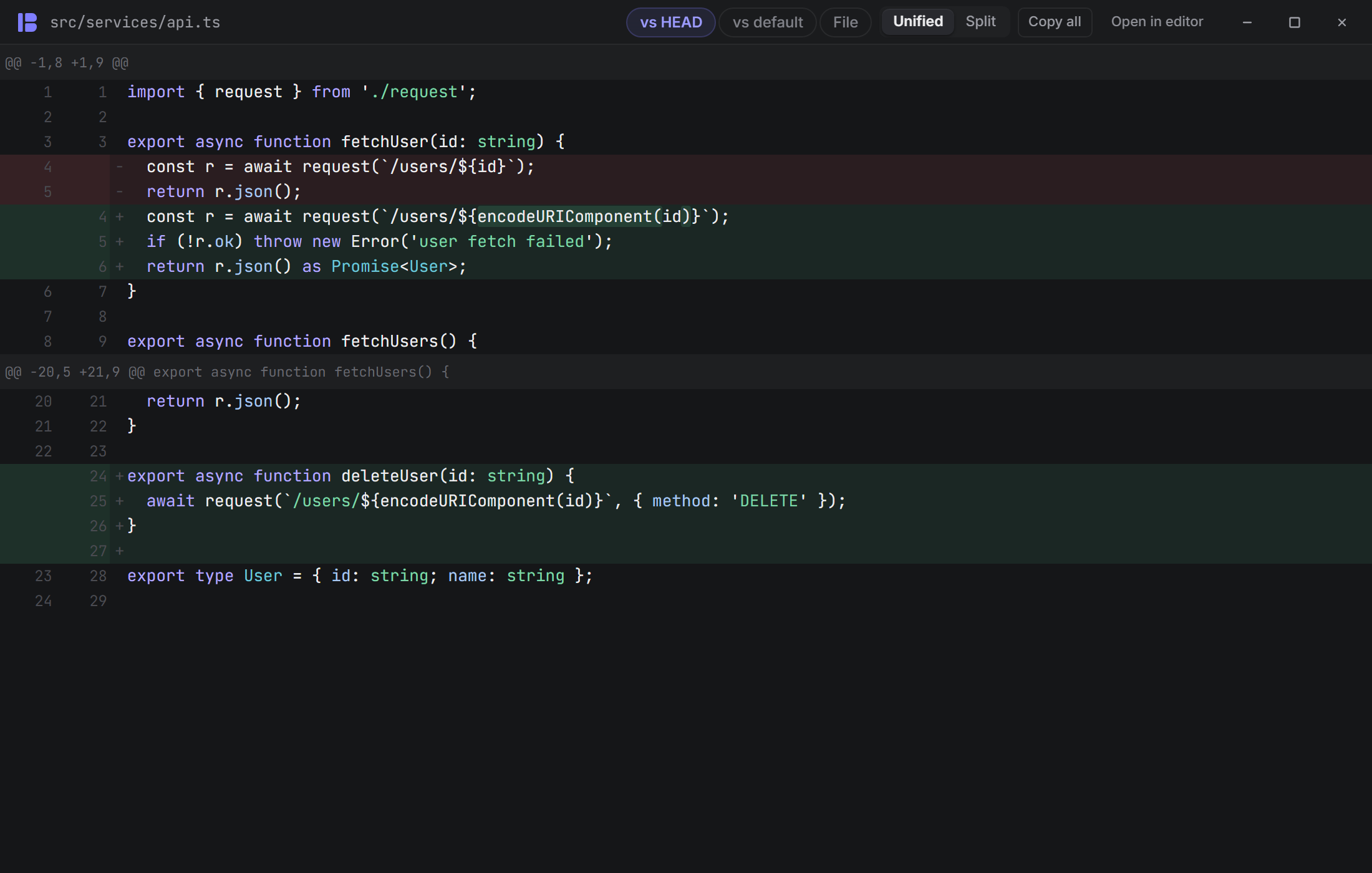
Review opens Quick review: read the description with its screenshots, then go through the changes one file at a time. A changed image shows Before and After.
Press V to mark a file reviewed and leave comments beside the code. Give it the whole window when a pull request is large, and press W to wrap long lines.
Once every file is reviewed, Approve & auto merge approves and lets GitHub merge the moment the checks pass.
Worktrees and Work items
Keep the rest of your work close
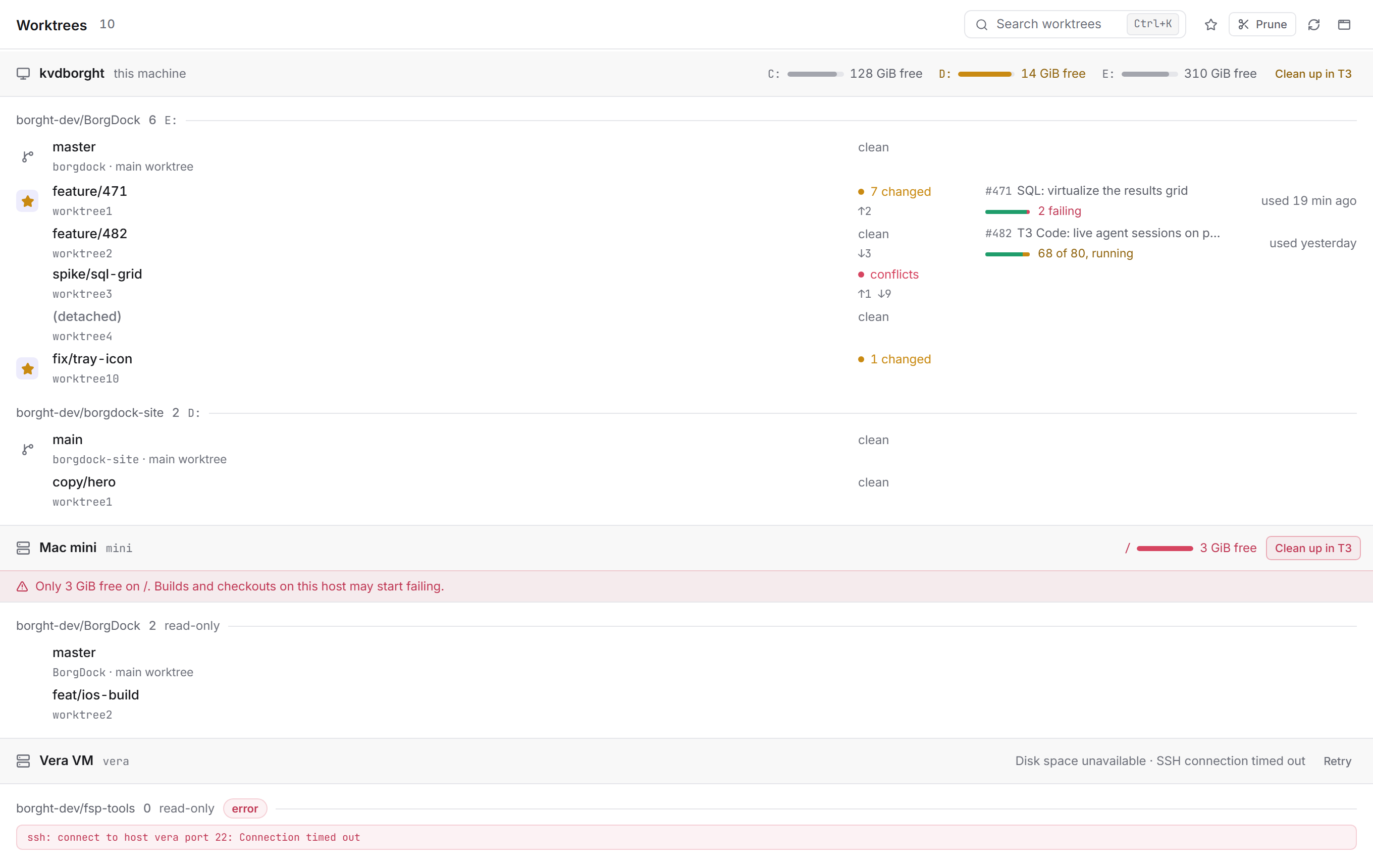
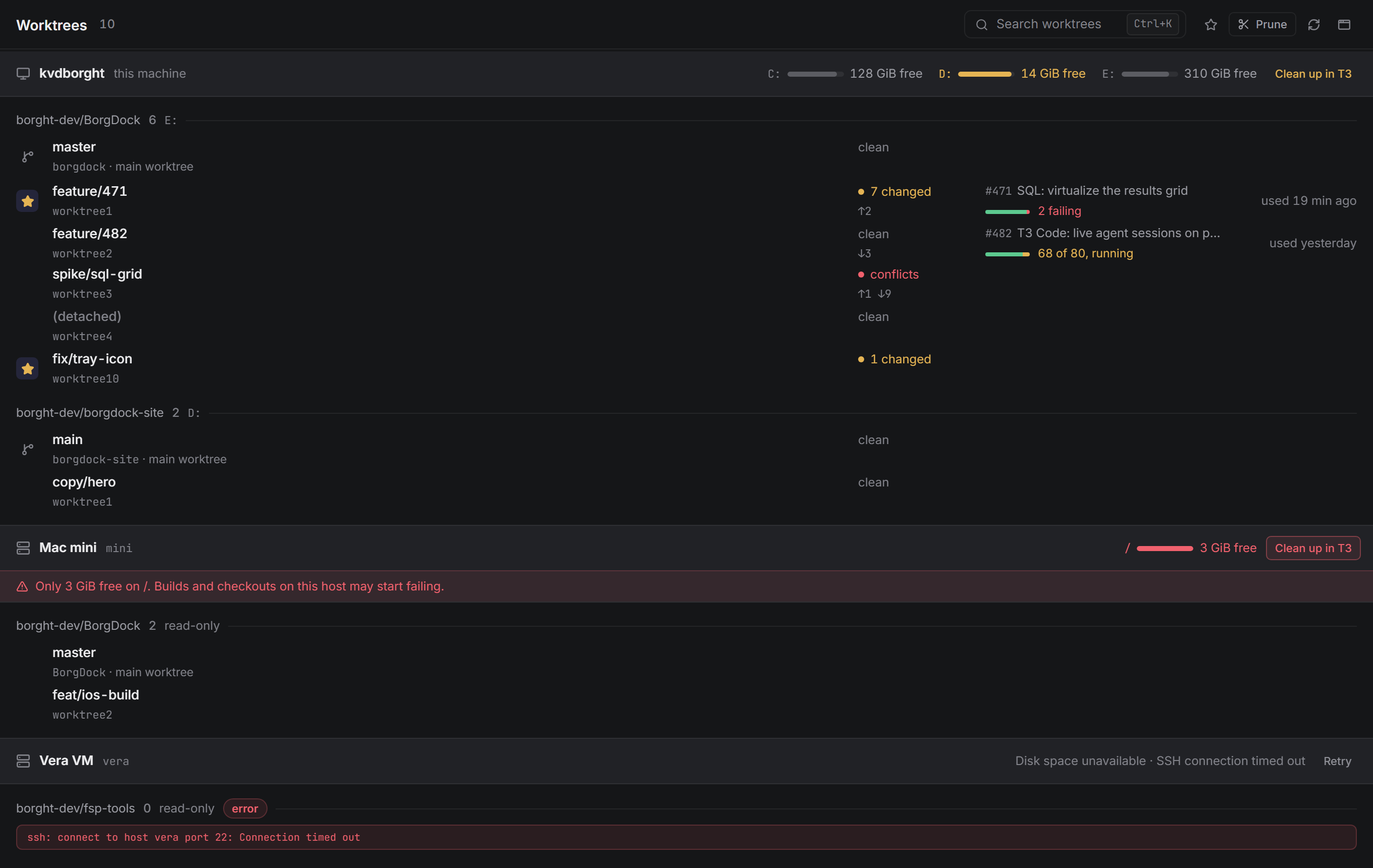
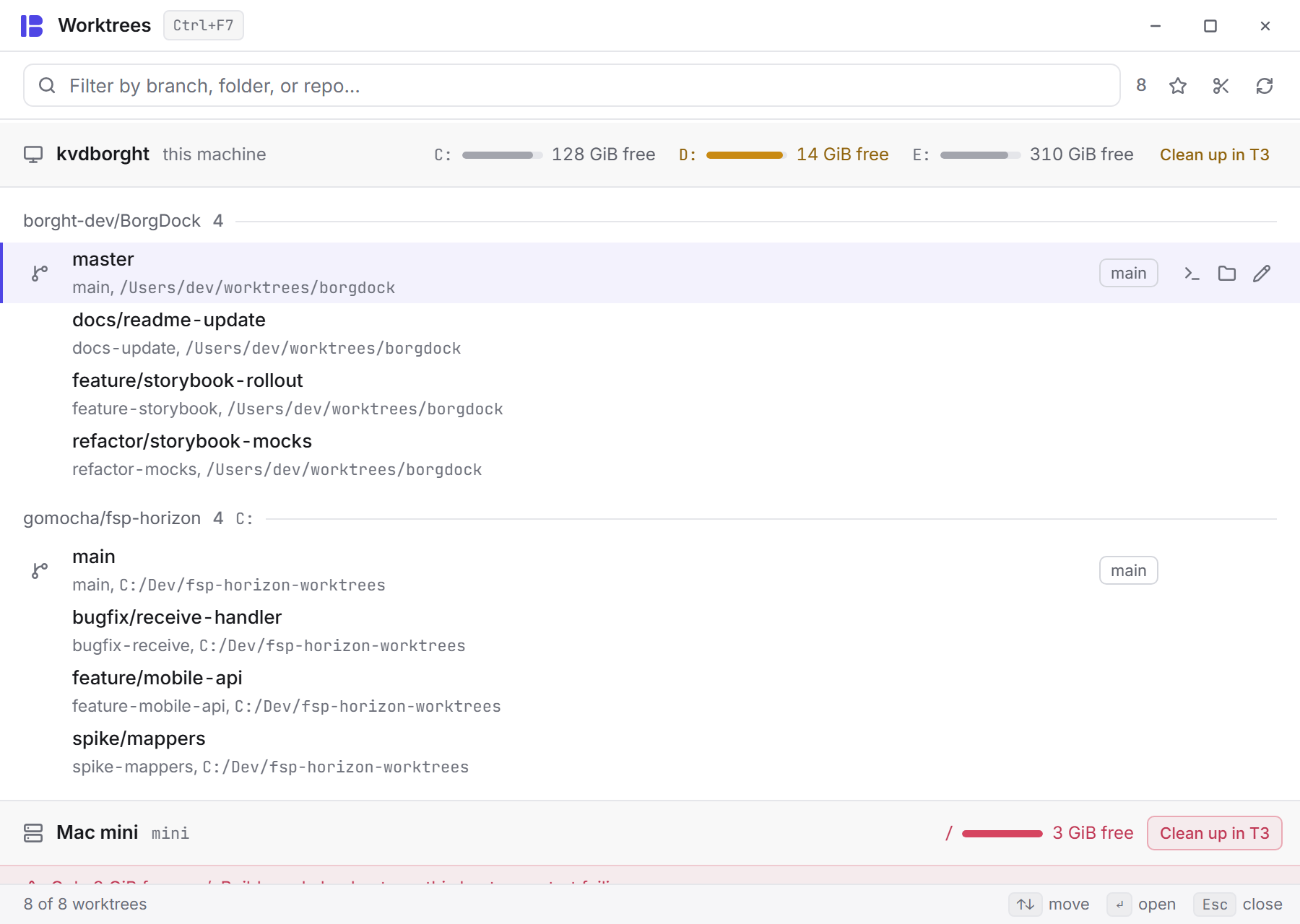
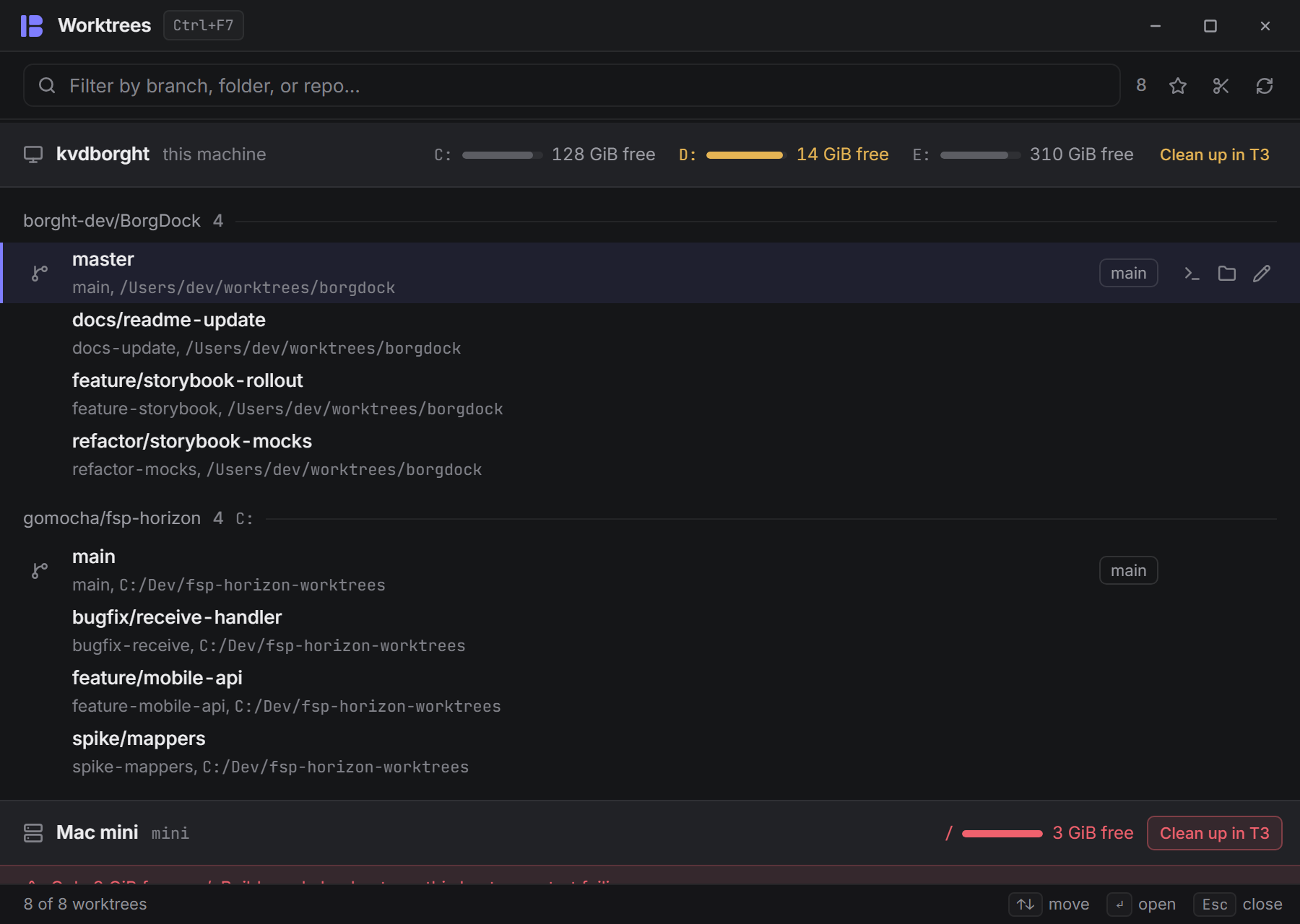
Worktrees groups your worktrees by the machine they live on, under that machine's free disk space. A disk that runs low stands out, with Clean up in T3 right beside it.
Every row shows its branch, its changes and the pull request on it. Press O for a terminal, T to open it in T3 or F to make it a favourite.
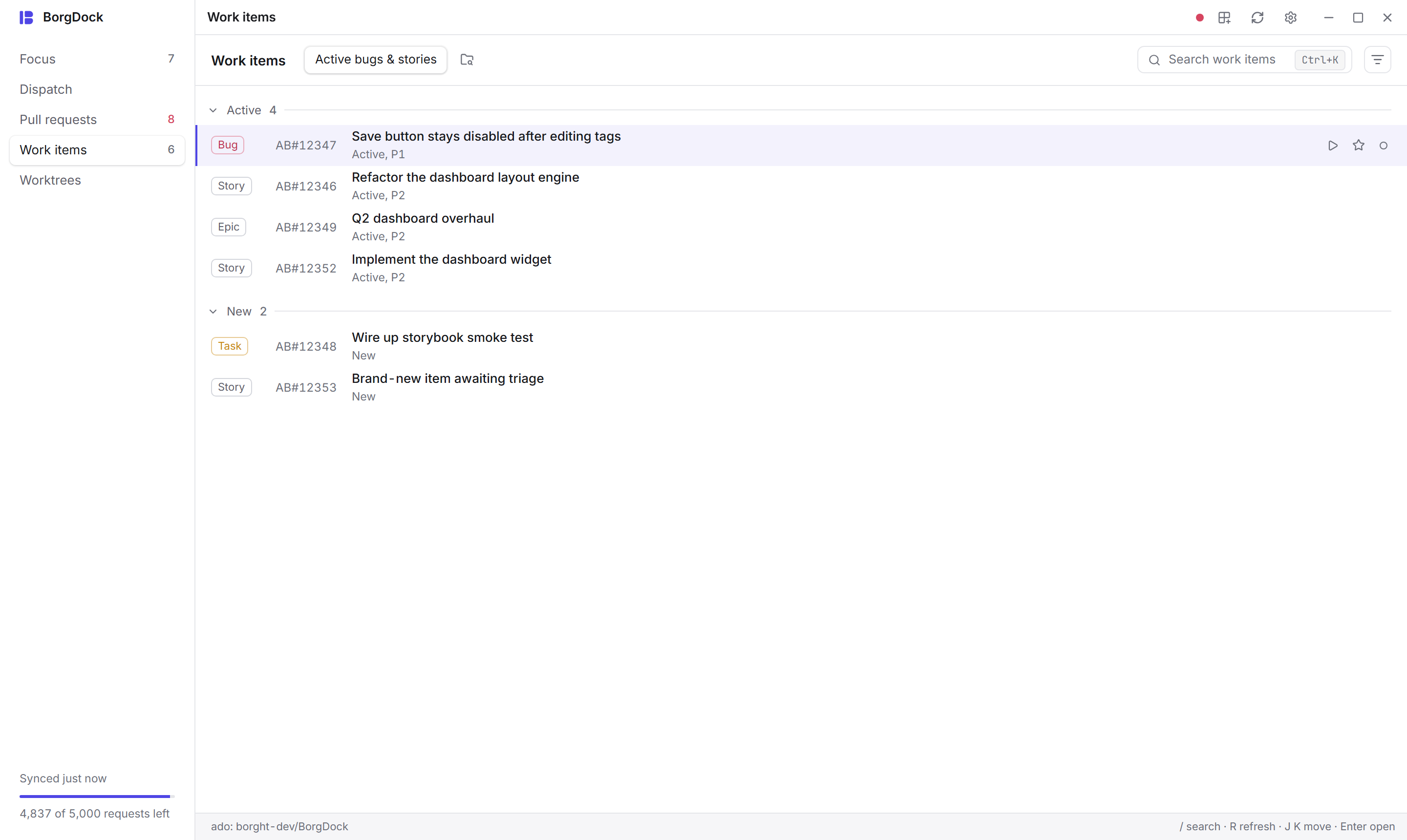
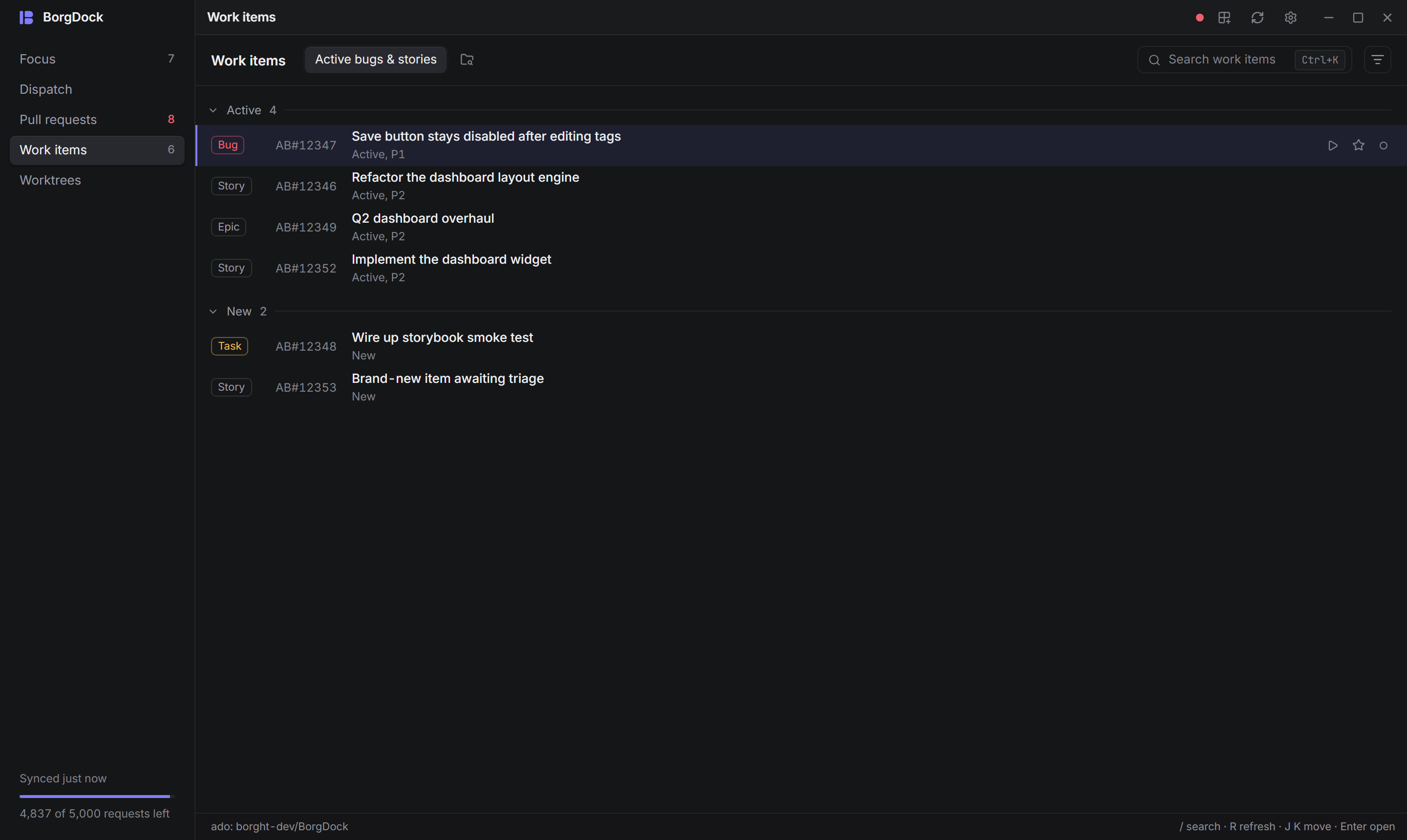
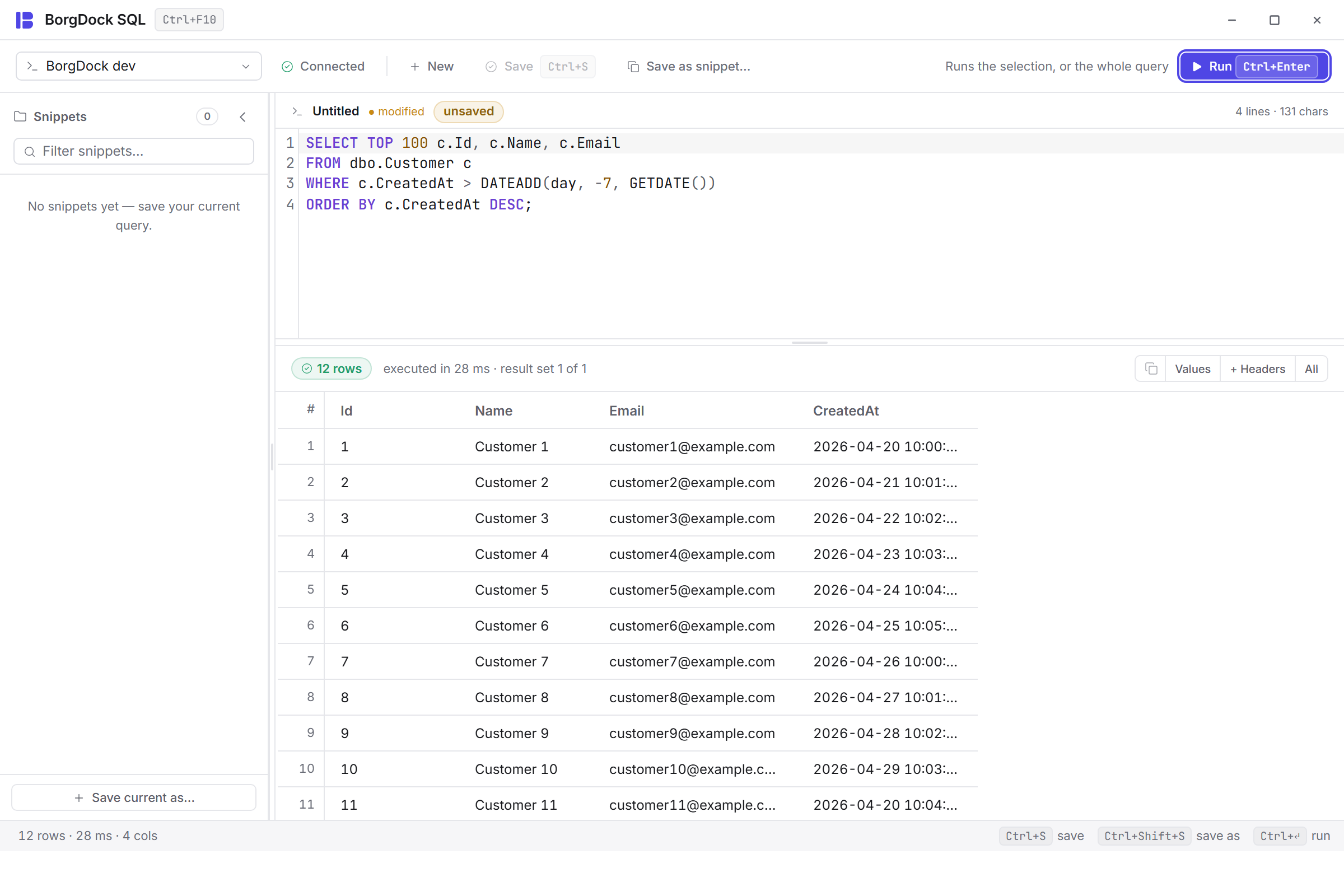
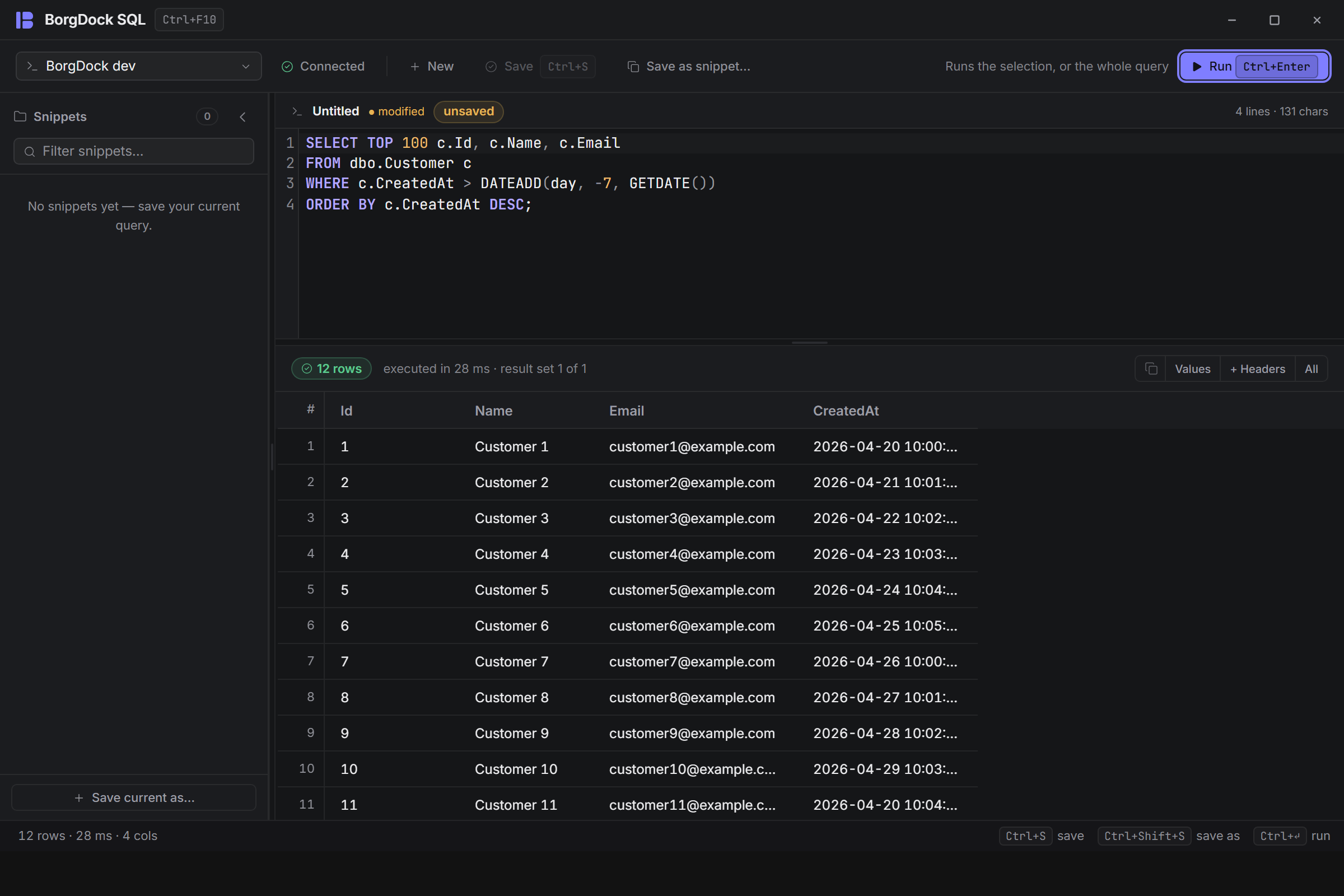
Work items brings your Azure DevOps queries into the same window, so you can open an item and change it without a browser.
Tools
Put it on the side of your screen.
Version 4.4.3, released October 22, 2026. Install it once and it keeps itself up to date.